Android gives you access to millions of apps and websites, but that freedom doesn’t always extend everywhere. Governments, schools, workplaces, ISPs, and even website owners themselves often restrict access based on location, network rules, or content policies. One minute, a site loads fine, the next, you’re staring at a “This site is blocked” message.
The good news? Getting around these restrictions on Android is usually easier than people think, and you don’t need to be a tech expert to do it. From simple browser tweaks to advanced privacy tools, there are multiple safe and effective ways to regain access without putting your data at risk.
This guide walks you through 9 proven ways to access blocked sites on Android, explaining how each method works, when to use it, and what to watch out for so you stay both connected and secure.
DISCLAIMER: This article is for informational purposes. We at PrivacySavvy doesn’t endorse or support violating any copyrights or geo-limitations laws. Streaming, torrenting, or consuming anything online restricted in your region without legal consent can lead you to severe legal consequences. So, always read terms and policy before diving into situation like this.
How to unblock blocked sites from Android – Quick list of methods
Short on time? Here are the quick steps to help you access restricted websites in your region:
- Use a stealth VPN.
- Get a proxy server.
- Use a secure browser like the Tor Browser.
- Change the DNS settings.
- Utilize the browser proxy extension.
- Use Google Translate.
- Get an IP address of the website.
- Change your network proxy.
- Use Internet Archive.
Why do websites even block Android users?
Before we start talking about how to get you into any website that has locked you out, let’s even address the “why.” Understanding why a website has blocked you in the first place can go a long way to help you choose the best method to unblock it. At times, it would feel like a personal rejection, we know, because we have all experienced it before. But to be honest, it’s hardly about you.
Think of it like a bouncer whose job is to prevent underage kids from stepping into a club where they may be exposed to things that are not appropriate for their age. The number one reason for blocking a site is to keep us safe and secure.
When websites or networks block access, they are merely trying to prevent some kind of threats, like hackers, from stealing your info. It’s a protective measure, even though it can be annoying and really frustrating.
Most blocks you experience online fall into two major categories:
Government and ISP restrictions
The governments sometimes restrict access to certain websites – whether for safety, political, or cultural reasons. Based on the law, your Internet Service Provider (or ISP) has no choice but to enforce those restrictions.
ISPs themselves may also block websites that they believe could pose a danger or throttle your internet to keep you away. This is their own way of trying to keep you safe and making sure your connection is not exposed to content that is harmful.
Workplace and school policies
If we are being honest, your boss probably doesn’t want you on social media all day. So many organizations will block websites on their Wi-Fi to limit distractions, keep people focused on their tasks, or simply keep people productive.
In the same way, schools block websites to protect the students and their network from security risks and to make sure the learning environment is safe. (To keep you aware of how to unblock sites at school, we have a dedicated guide on that.) Unlike what many students think, this is not only to stop the fun, but it’s also about keeping things orderly and safe for everyone. (We have also curated a list of the top VPN services that work well in school and college.)
Top methods to unblock websites on Android – Detailed guide
Now that we have tackled the cherry on top, let’s get to the main cake. Take a look at the best and most reliable ways to get around website blocks on your Android devices.
1. Use a VPN
VPNs are by far the safest and easiest way to unblock websites, most especially if you are a regular visitor to that particular website. It encrypts all your web traffic and routes it through a server in a location of your choice.
To the network you are connected to, it merely looks like you are connecting to a VPN—it hides all browsing activity. It is the ultimate key to unblocking sites.
How does a VPN work for unblocking sites?
Below, we will elaborate on how a VPN works and what benefits it has:
- First, a VPN hides your real IP address so the website won’t know exactly where you are connecting from, since your IP address can give away your real location.
- Second, it passes your traffic through remote servers that are hard to trace.
- A VPN also encrypts your connection, scrambling everything so that whoever is looking or snooping on you will only see gibberish.
- It helps you get around geo-blocks and network restrictions by making sure the network won’t know it’s you. They would think you are connecting from somewhere else.
How to use a VPN to unblock websites on Android
1. Choose a trusted VPN provider. (We have a dedicated guide on how to choose the right VPN for your needs.)
- NordVPN, ExpressVPN, or Surfshark are good choices. (If you want a full list of the VPN services overall, we have curated a dedicated list here.)
- Go to the Google Play Store, locate your preferred VPN provider, and download it.
- Avoid free VPNs; they often have data caps, slower speeds, and may even sell your data.
2. Install the app and create an account.
- Install the app you have downloaded.
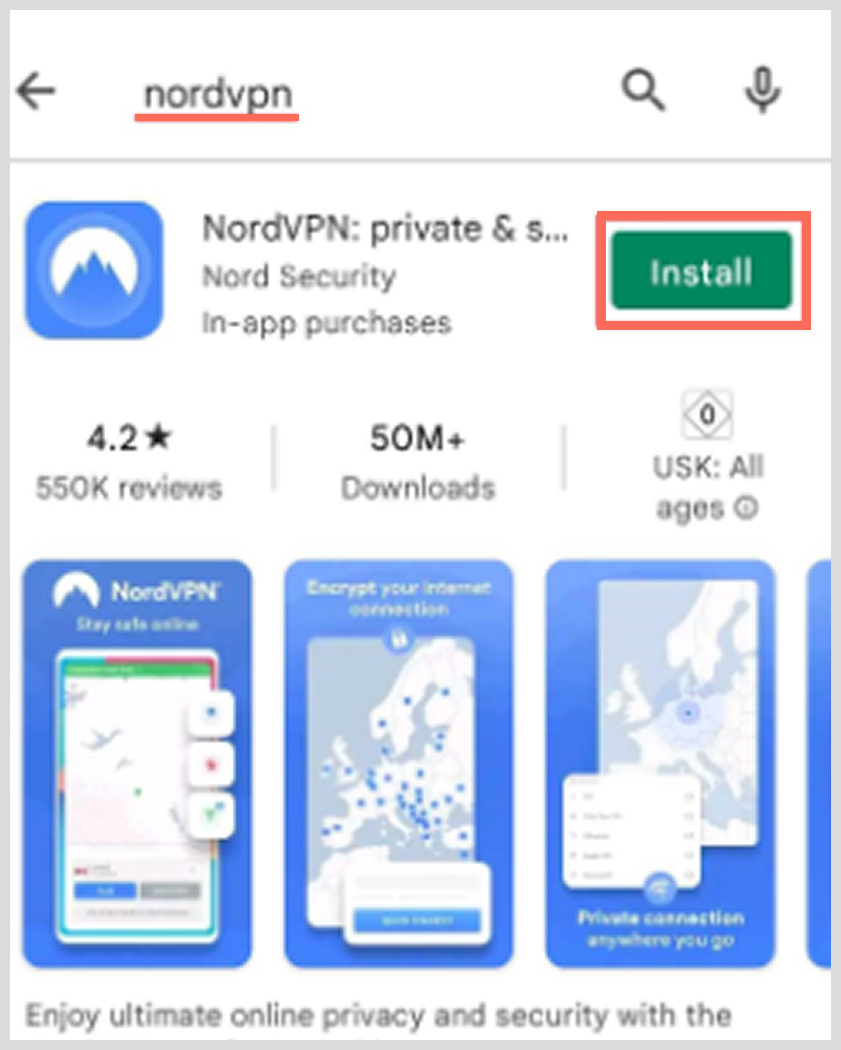
- Open the app, click on login or sign up, and create your account.
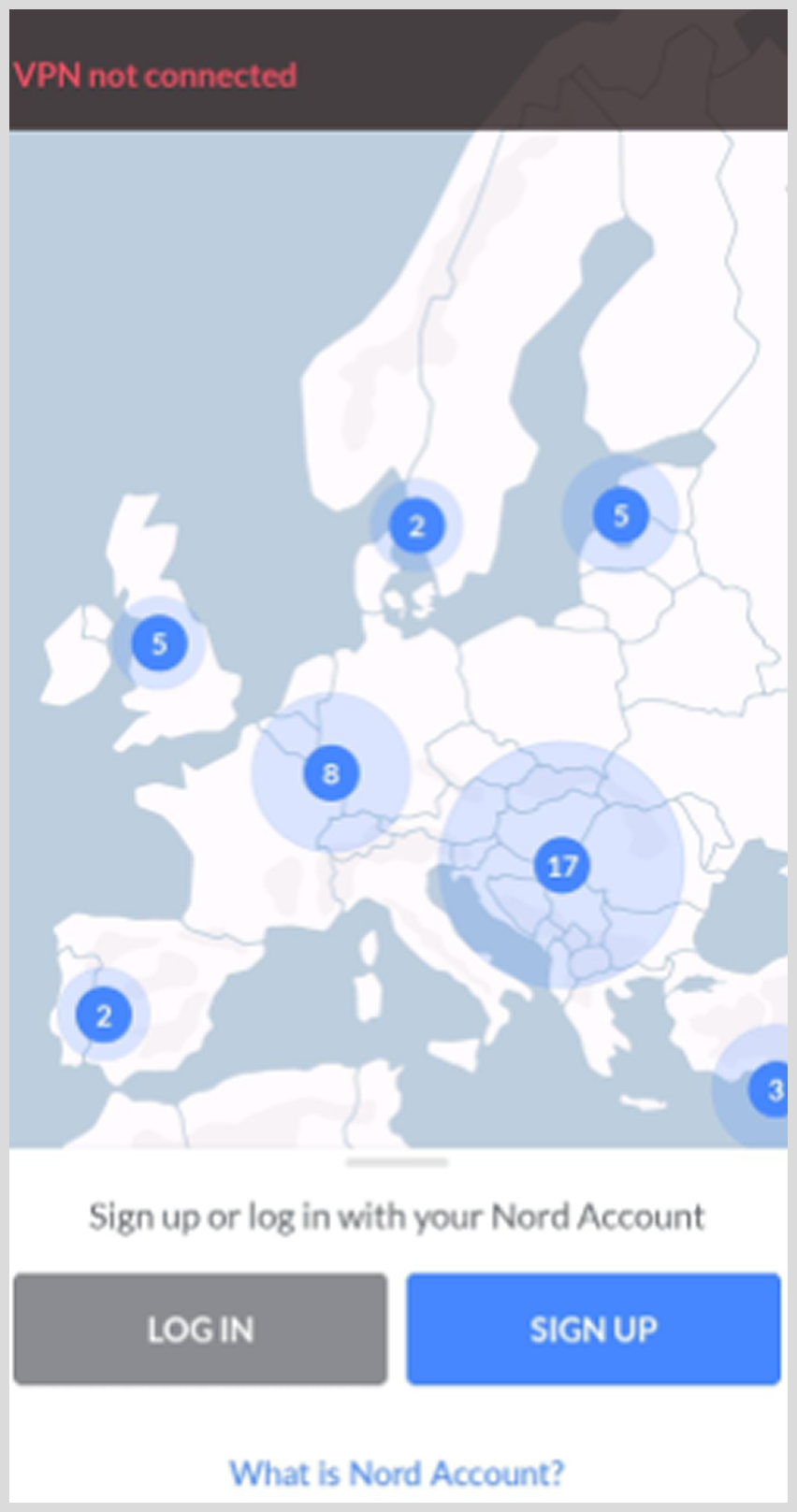
- If you already have an account, log in with the same credentials you used to create the account.
3. Connect to a VPN server
- When the app asks to set up a VPN connection, allow the connection request.
- Choose the server location you would like to be linked to from the list of available countries.
- If it’s a US-only site you are trying to access, choose a US server.
- Click on “Connect.” You will know that you connected successfully when you see a key icon in your notifications bar.
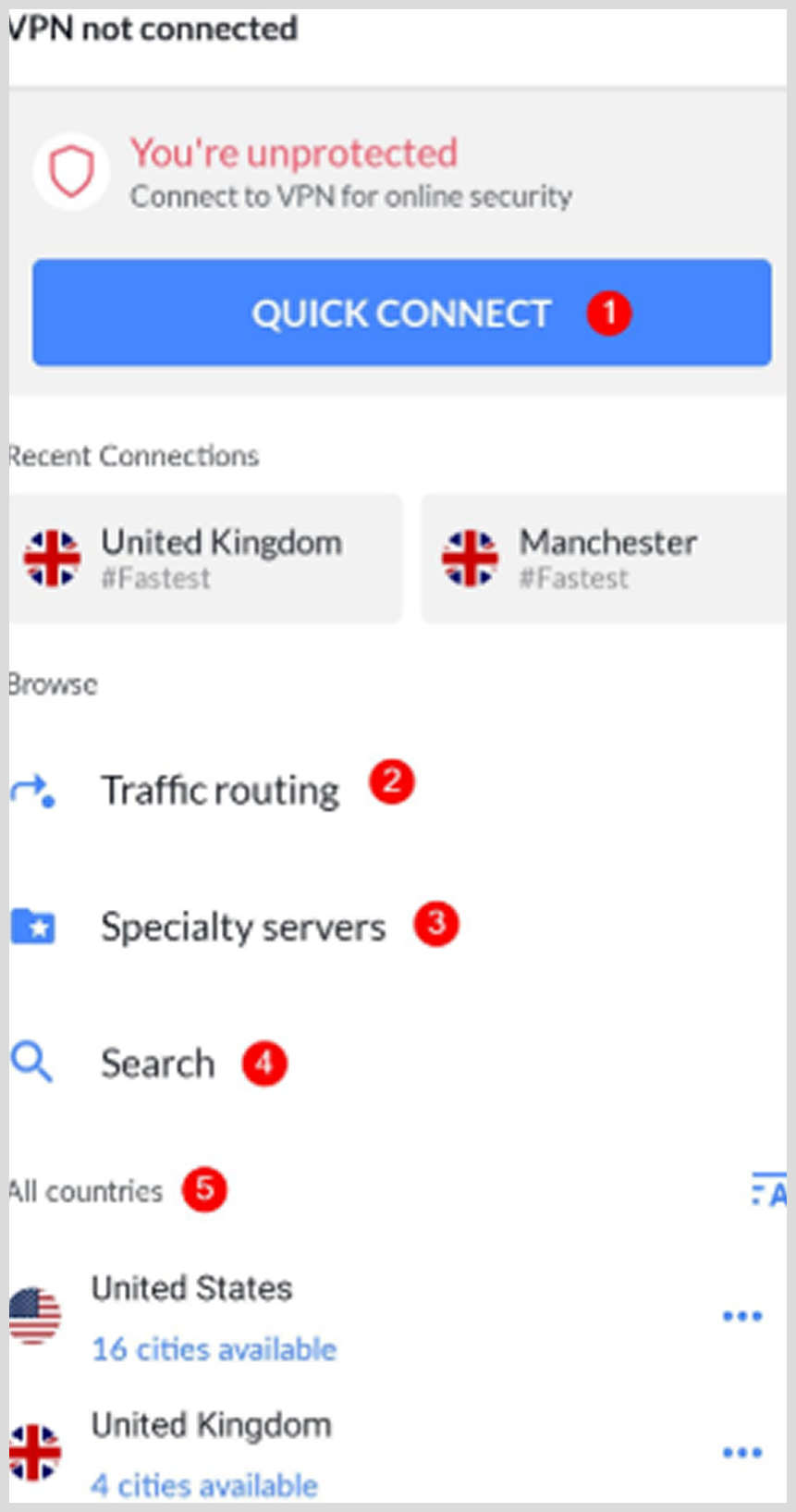
4. Open your browser and test it.
- Open your preferred browser, whether Chrome, Safari, etc.
- Navigate to the site that you previously could not access.
- Now the site should now load without any problems!
2. Use a proxy server
A proxy server basically acts as a middleman between your phone and the internet. It works by hiding your IP address and making your request look like it’s coming from the proxy server itself.
Proxy servers are a faster option than VPNs; however, they are less secure (because your data is not encrypted).
How to access blocked sites in Chrome on Android using a proxy
1. Find a reliable web proxy service
- If you want to use a free proxy, do this by searching “free web proxy” on Google or any other search engine. If you don’t want to use Google, you can also use any of the top private search engines today.
- Hide.me, ProxySite, and KProxy are all reputable options you can choose from.
- For security purposes, it is better to always make use of proxy sites that have HTTPS enabled, as HTTP sites are less reliable and secure.
2. Access the proxy website
- Make sure you research the proxy first. This step is really important, please don’t skip it. Many proxies are filled with ads, and some can be malicious.
- In your browser, navigate to the proxy website.
- Look for the URL bar in the proxy site; this is where you will enter the address of the blocked website.
3. Type in the blocked website’s URL
- Once you see a URL bar, enter the URL of the website you are trying to access.
- Choose your preferred server location.
- Click the “Browse” or “Go” button. The website will be loaded within the proxy’s page.
Note: Setting up a manual proxy in Android Wi-Fi settings is not common because of all the HTTPS use, web-based proxies are the easier route for most users.
The downsides of using proxy sites
- Might be slower than direct connections.
- May not work on all websites (especially on websites that use advanced security).
- Limited privacy protection compared to VPNs.
3. Use the Tor Browser
The Tor Browser is a free and open-source browser that was designed to make web browsing more anonymous. It routes your traffic through several volunteer servers around the world, making it nearly impossible to trace or block what you are doing online. The Tor Browser is powerful, but can be slow, especially for streaming content or downloading.
Besides, many think about whether it is legal to use the Tor browser. Well, as long as you are using it for legal purposes, you’re on the safe side. The problem arises when you start poking the wrong area or misusing it (like using it to access the shady part of the internet — dark web without proper SOPs).
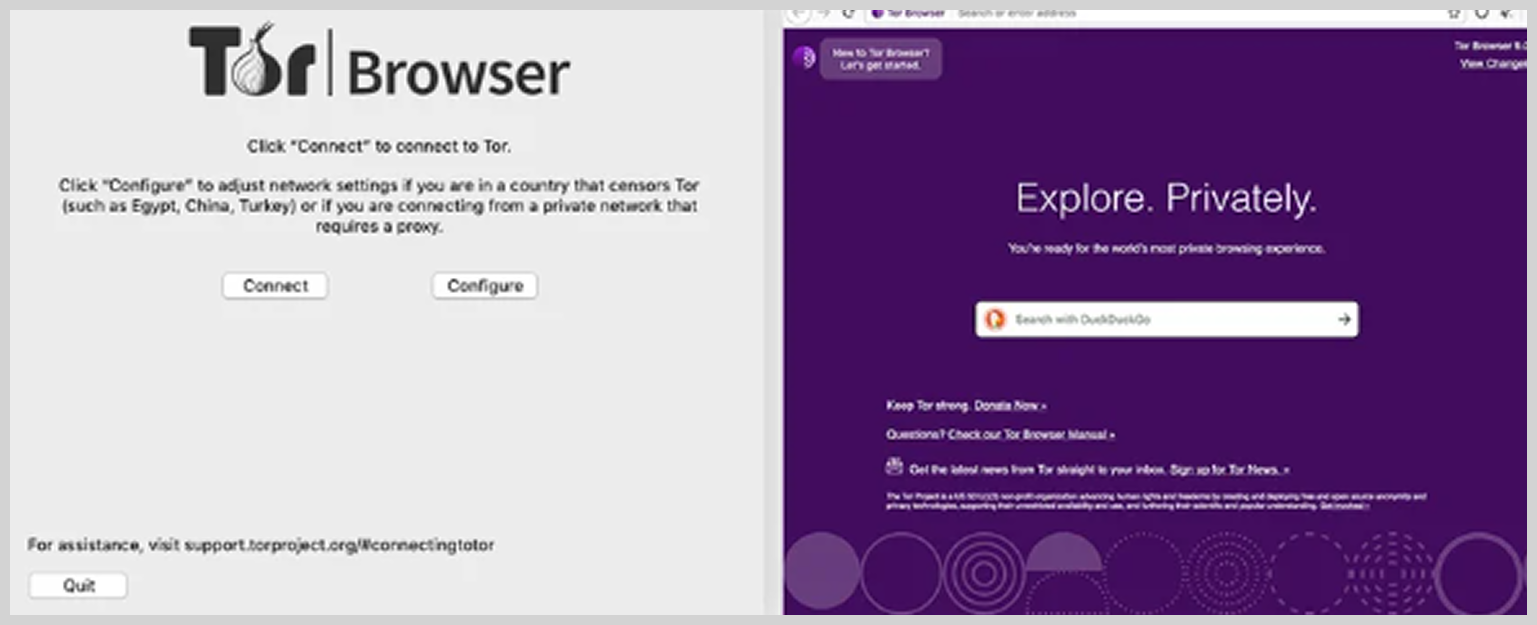
How to unblock websites with Tor on Android
- Go to the official Tor Browser website, pick the download option that matches your device.
- Download and install the Tor Browser app.
- Open the browser app and set it up based on your location and network settings.
- Click on “Connect.” Wait a little bit for it to connect securely.
- Once you are connected, you can then use the built-in browser to access any websites that blocked your access.
4. Change your DNS settings
DNS (Domain Name System) changes allow you to access blocked sites on Android for free without requiring any additional apps. There may be instances where this works better than others; this method is best for blocks done at the ISP level.
Follow these steps to change your DNS:
1. Open Settings on Android
- Locate Settings > Wi-Fi (or Network & Internet).
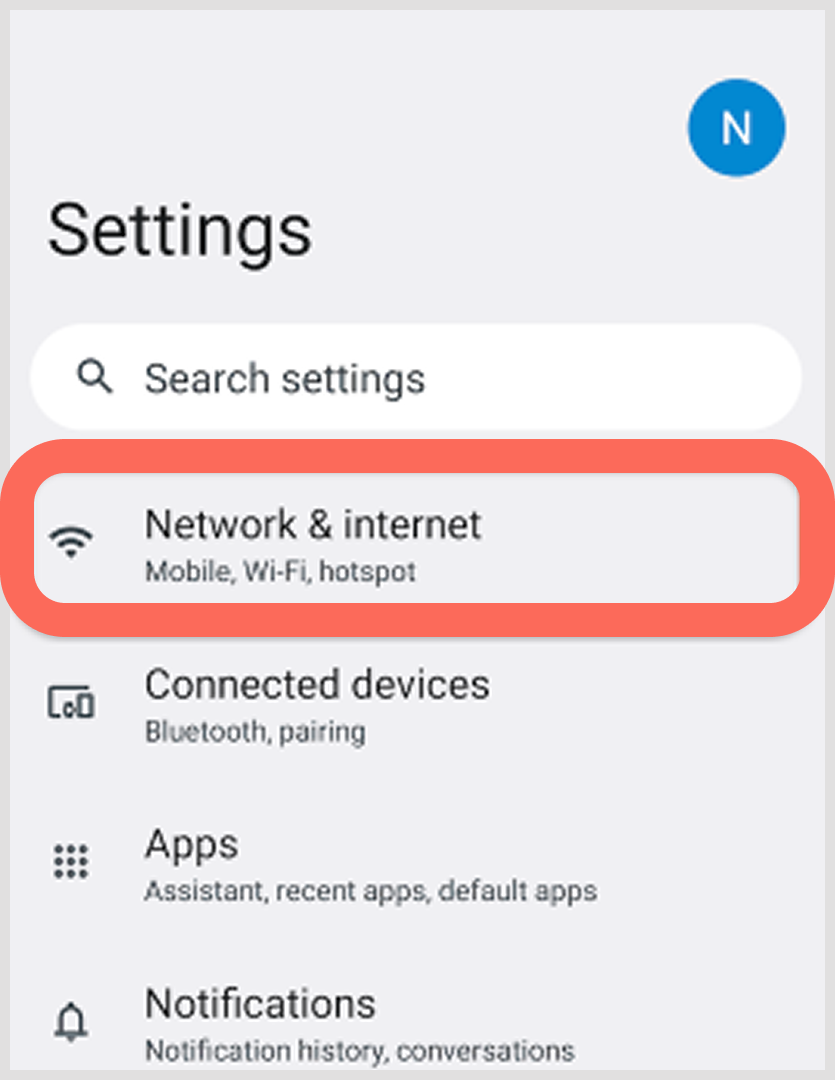
- Long-press on the connected Wi-Fi network.
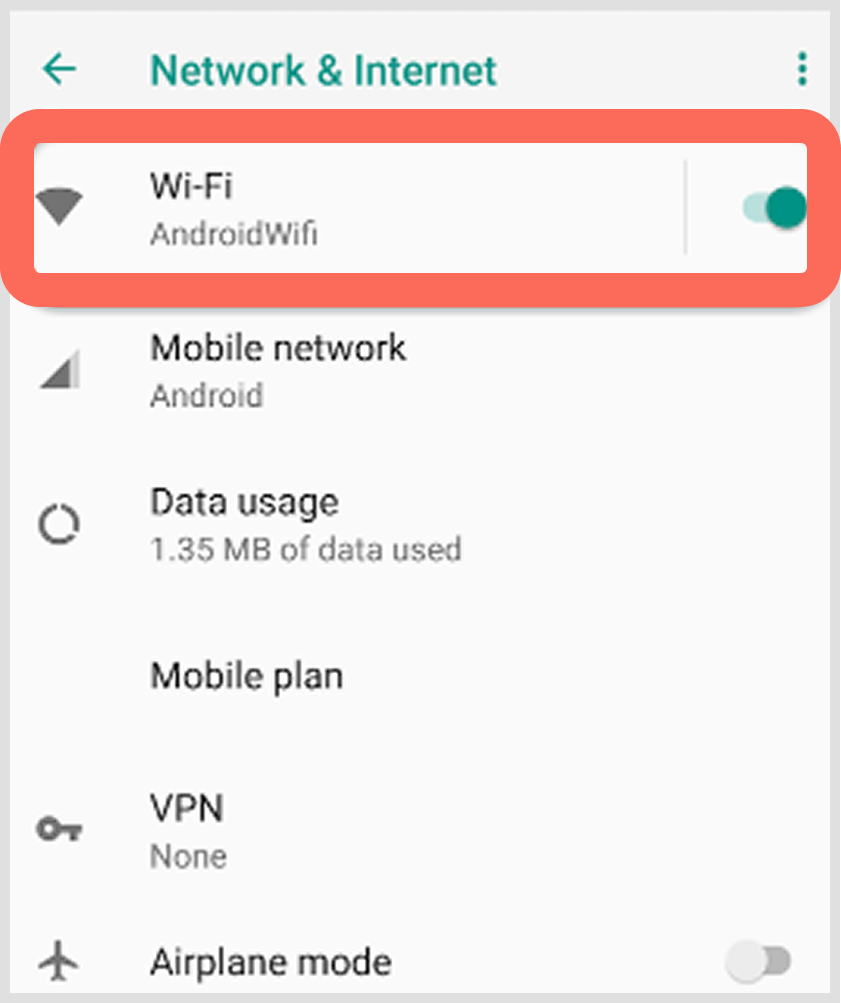
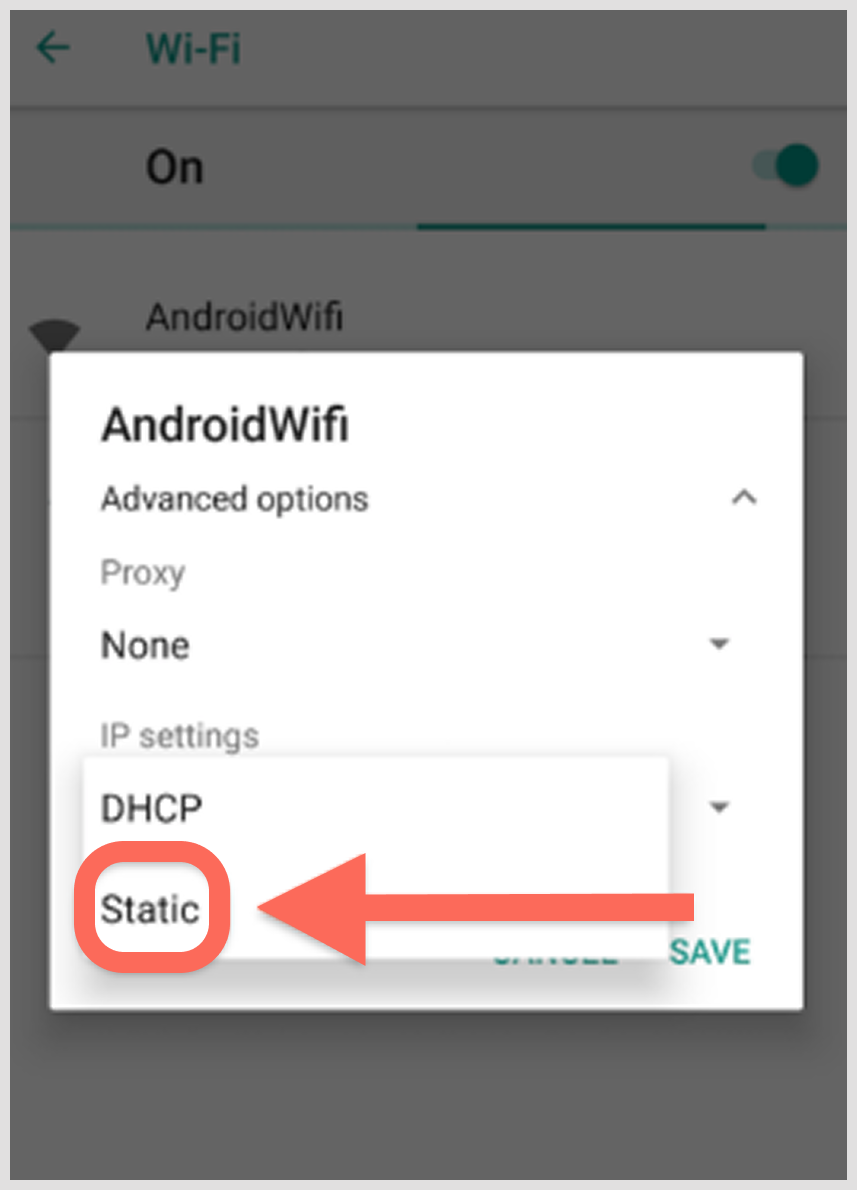
2. Modify Network
- Tap “Modify network” or “Advanced options”.
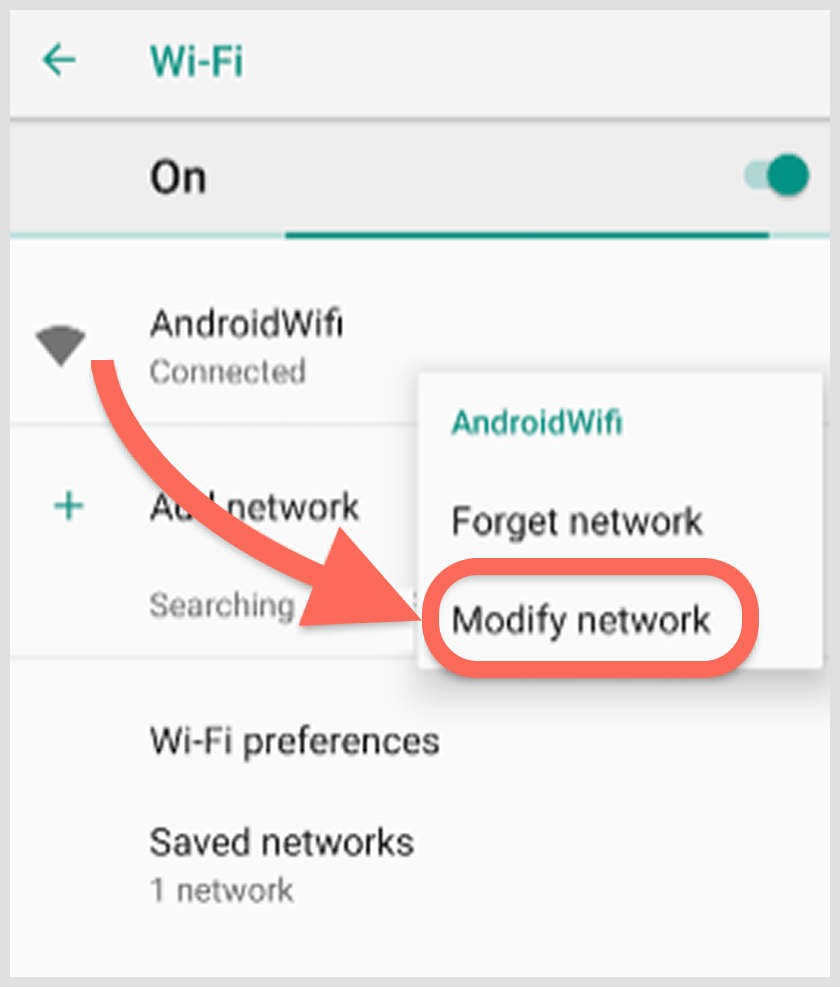
- Switch the IP Settings to “Static”.
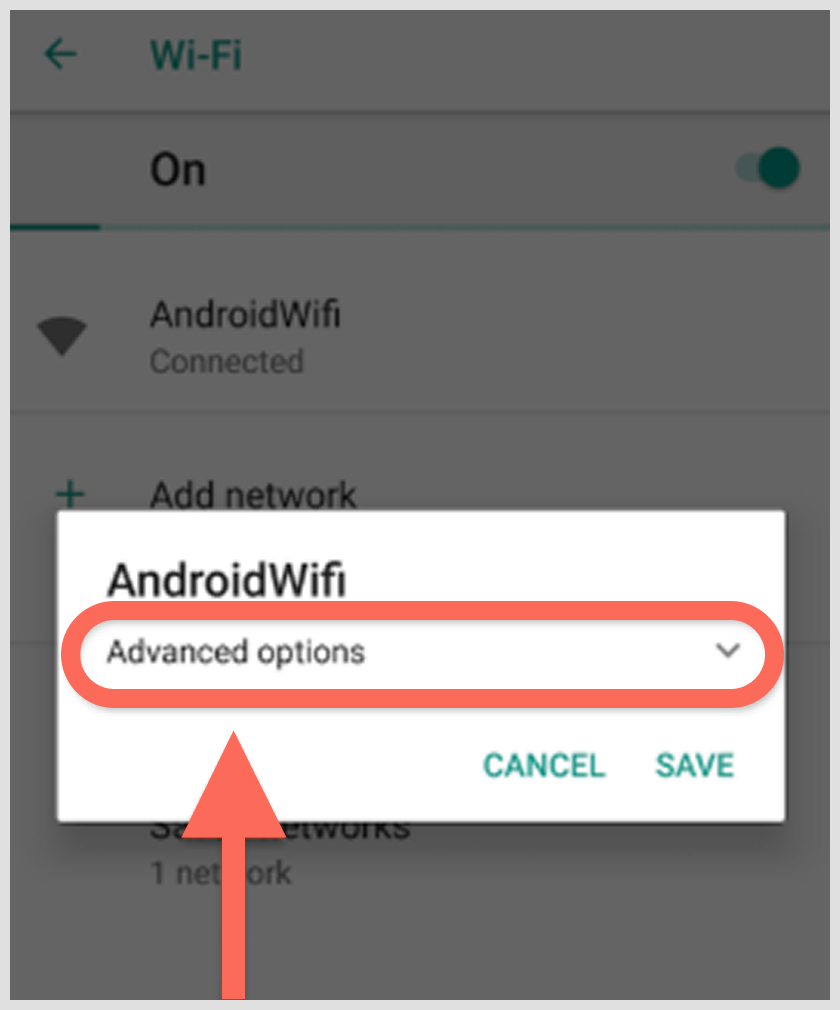
- Scroll down to the DNS Sections.
3. Enter new DNS Servers
- DNS 1: 8.8.8.8 (by Google).
- DNS 2: 8.8.4.4 (Google Alternate).
- Or Cloudflare 1.1.1.1 and 1.0.0.1
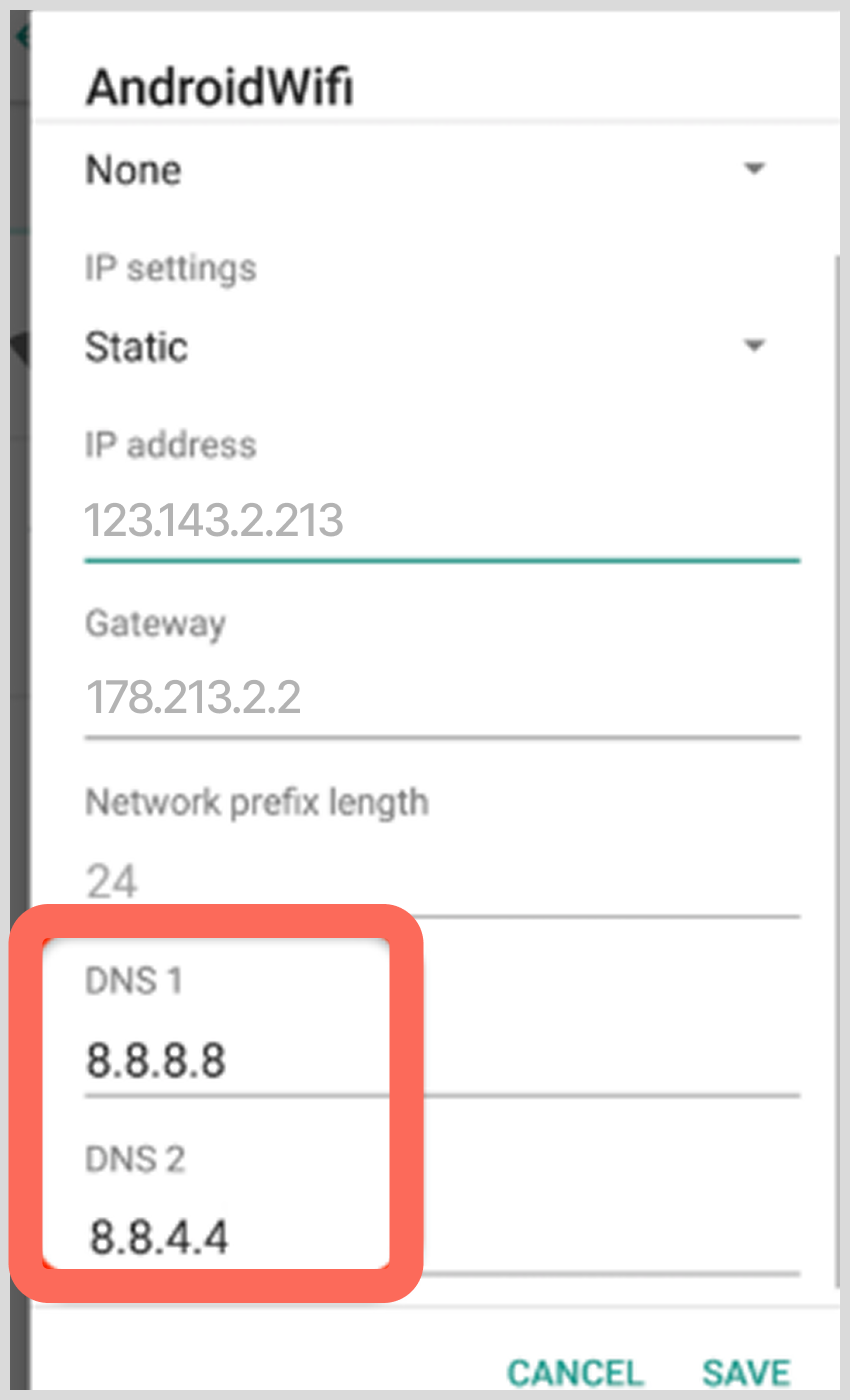
4. Save and Reconnect
- Tap “Save” and disconnect from Wi-Fi.
- Reconnect to allow the new DNS settings to take effect.
- Check the previously blocked website.
Alternative DNS Options
- OpenDNS: 208.67.222.222 and 208.67.220.220
- Quad9: 9.9.9.9 and 149.112.112.112
Note that these steps may vary just a bit depending on which version of Android you are using.
5. Using the browser proxy extension
For those who want a browser-specific option, many of the tools used to unblock websites have browser extensions. And they serve as a proxy website, providing an easy way to unblock website browsers like Chrome without needing any system-wide action. This will, in turn, enable you to access blocked sites in Chrome and other browsers. (We put together a list of the top browser proxy extensions for you.)
Most VPNs, like NordVPN and ExpressVPN, have their own browser extensions that you can find in the Chrome Web Store and also on their individual official websites.
How to use it?
1. Install the proxy extension.
- For Chrome: Proton VPN, ExpressVPN, Browsec, etc., will suffice, or you can choose from our curated browser proxy extensions list.
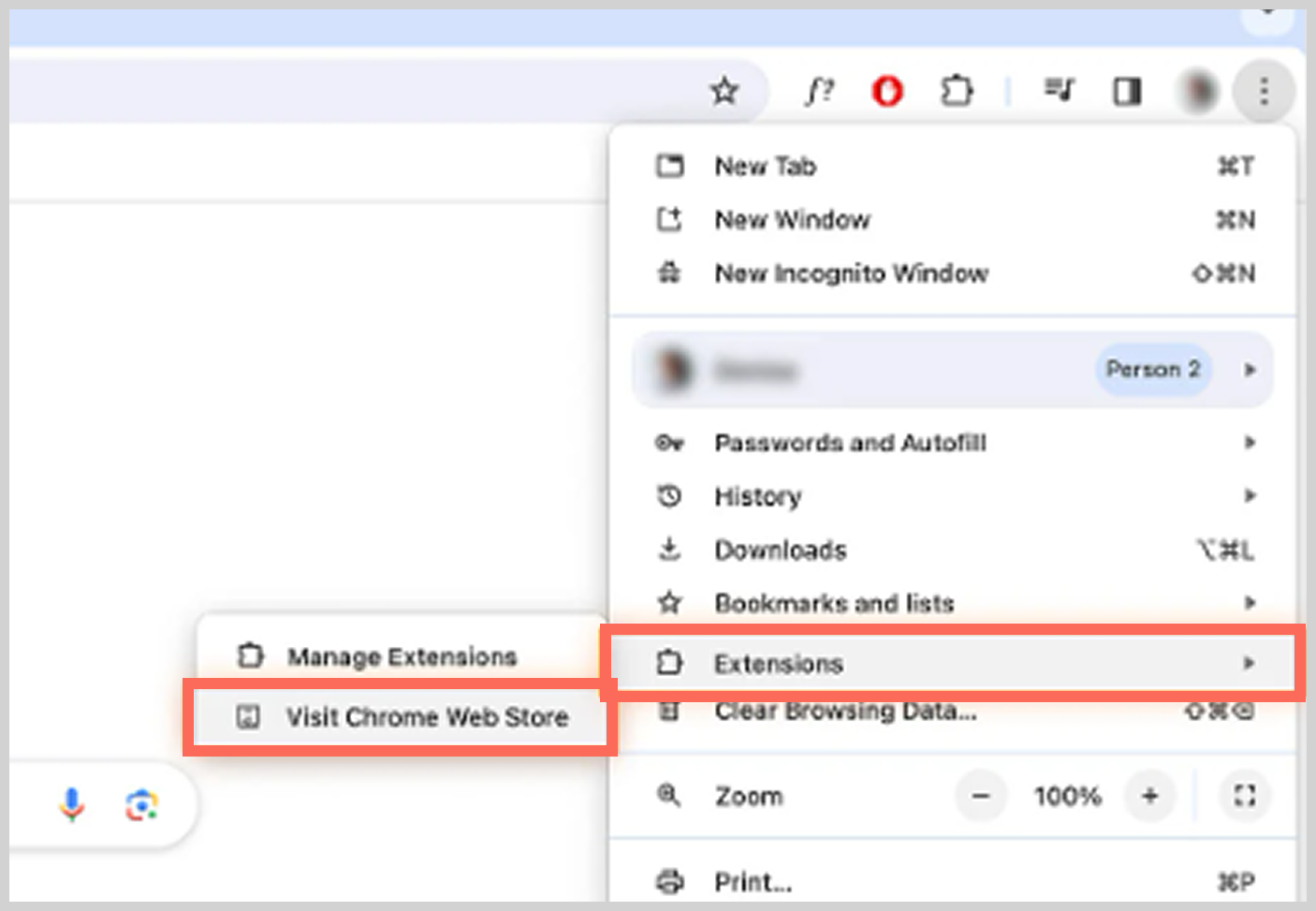
- Go to the Chrome Web Store on your Android Device
- Search for the proxy extension you want and select add.
2. Setting up the extension
- Open the extension after installing it.
- Select your server location of choice.
- Turn on the proxy connection.
3. Testing the connection
- Go to a blocked website.
- Extension should route your traffic through a proxy server.
- Check your IP address to ensure the extension completed the change.
4. Managing extension settings
- You can turn the extension “on” or “off” as required.
- Some extensions may even allow split-tunneling.
- Check the performance, speed, and connection stability of the extension.
Pros of using an extension
- Quick and simple to install, free to use.
- Does not alter or impact other applications on your device.
- Typically, bring other added privacy runs.
- Can be removed or disabled quickly when you are not using it.
Limitations
- The archived content may not be the latest
- There will not be interactive functionalities or features; for example, you cannot complete forms, send emails, or log in, etc.
- Images and media may not load correctly.
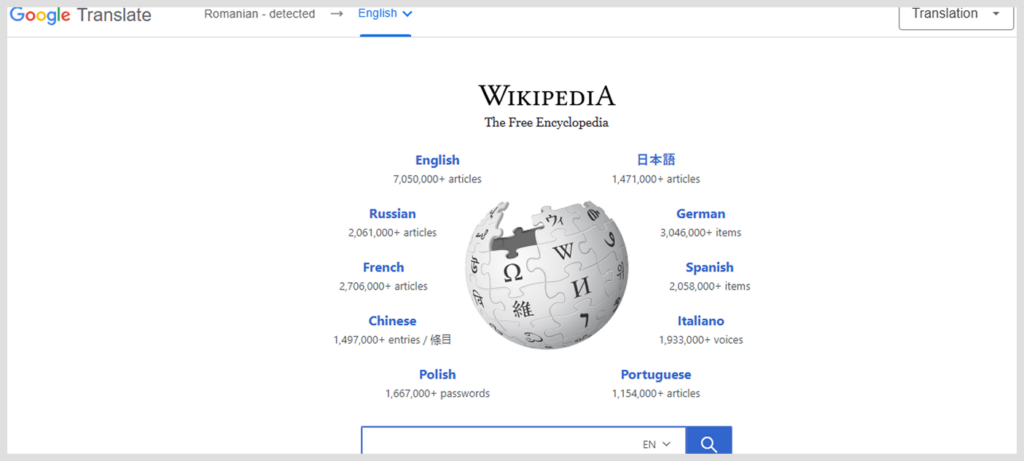
6. Use Google Translate
This is an incredibly straightforward and free way to access a blocked website. You’re actually just using Google’s servers as a proxy to grab the website for you. It is one great way to access blocked sites on Android free of charge.
How?
- Open your browser and go to translate.google.com.
- Copy/paste the link to the website you want to visit in the box.
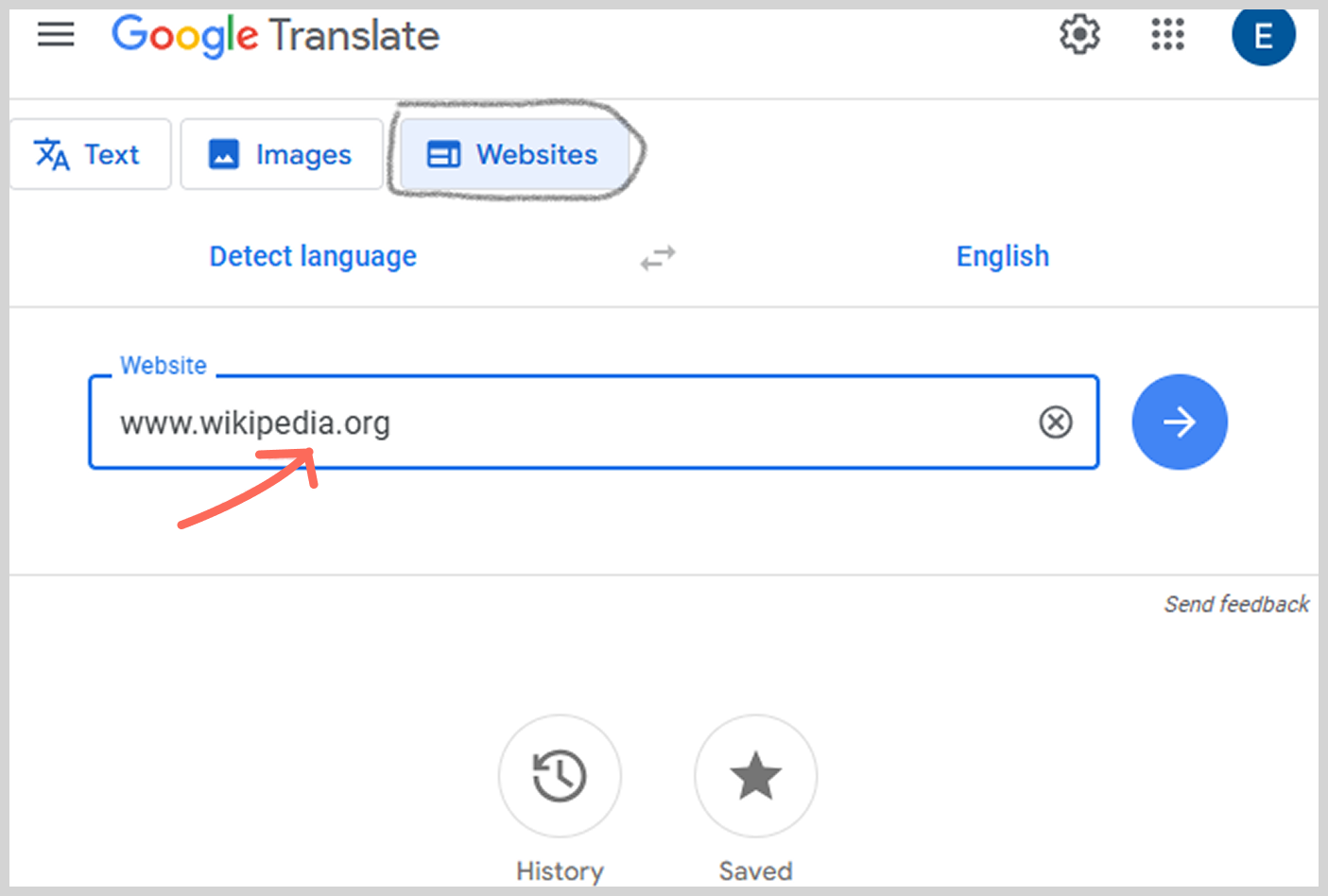
- Click the dropdown for “source language” and select any language that’s not the default (if the site is in English, then use “Spanish” as the source language).
- The translated link will appear in the right box. Click the link.
- The website is now loaded in the Google Translate frame, bypassing many simple network blocks.
7. Use an IP address
Occasionally, a network might block a site by domain name (e.g., www.facebook.com) but not by the site’s numerical IP address. You might have some luck going directly to the site using its IP.
How to access the blocked site through the IP address
- Open Command Prompt (Windows) or Terminal (Mac) on your PC.
- Type in ping websitename.com (for example, ping facebook.com) and hit Enter.
- Note the IP address (e.g., 123.456.78.9) that will be displayed.
- Then, on your Android, type in that IP address into the address bar (instead of the website name).
Note: This does not work for websites hosted on shared servers, like most big platforms today, but it can work for smaller sites.
8. Change the network proxy
If a network administrator has a specific proxy, you may be able to remove it and not use it.
Changing your proxy settings on Android
- Go to Android Settings > Connections > WiFi.
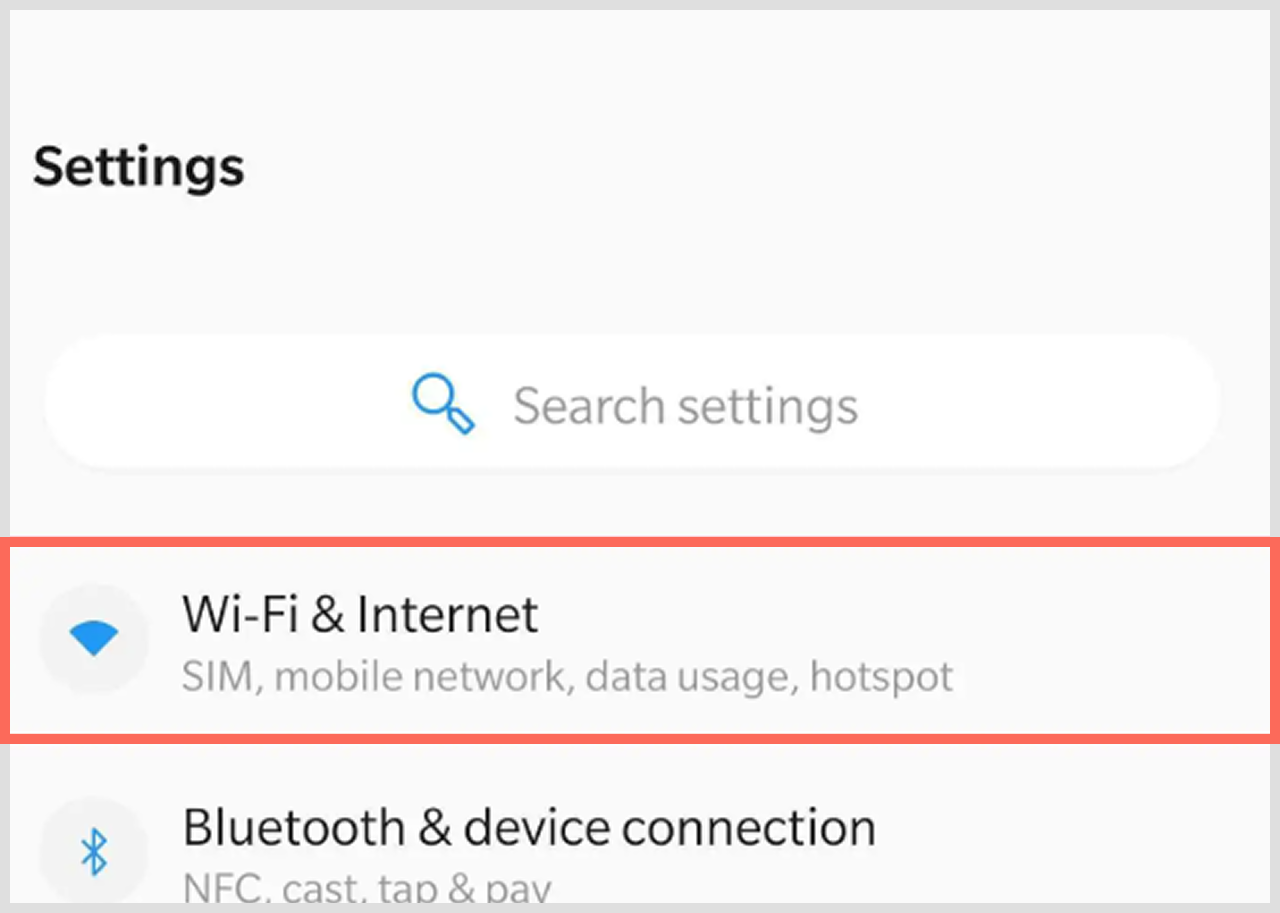
- Press and hold the Wi-Fi network and then select Manage network settings or Modify network.
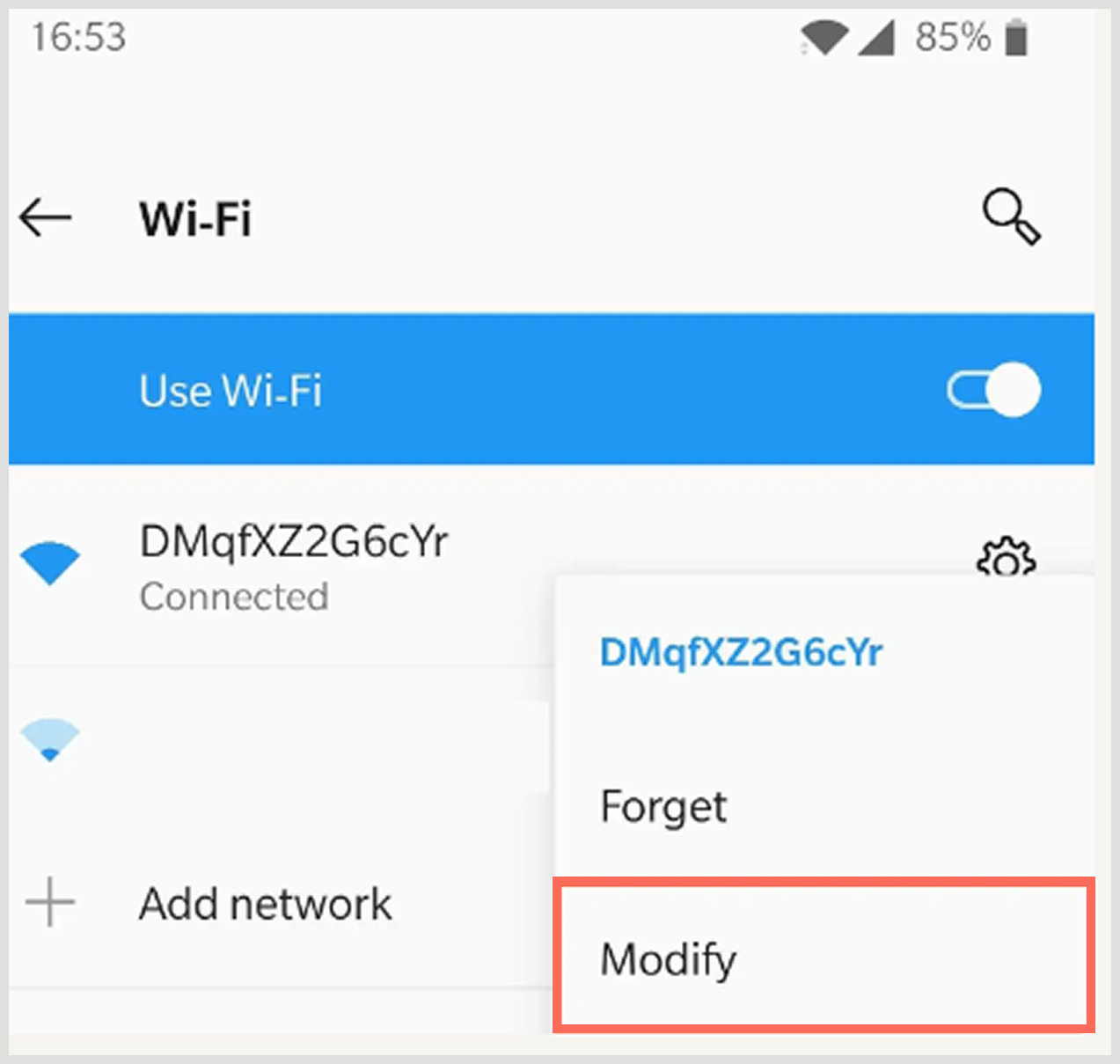
- Click Advanced options.
- You should see Proxy. Change this to None.
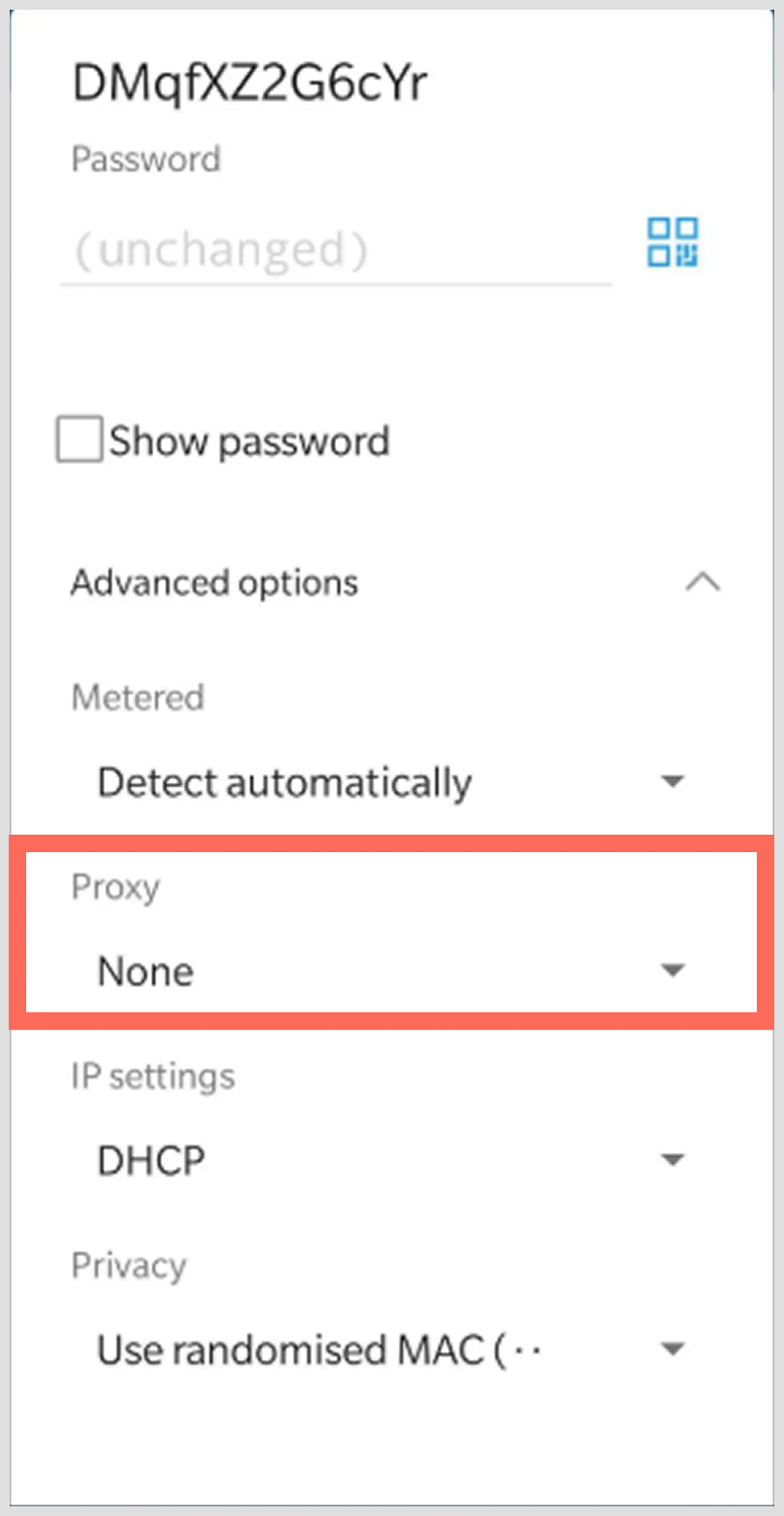
- Save your settings and try the website again.
9. Using Internet Archive (Wayback Machine)
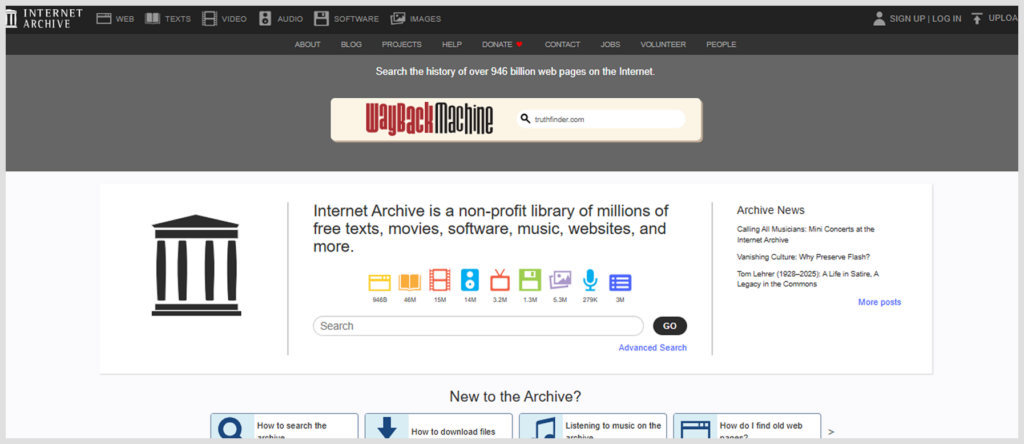
1. Visit Archive.org
- Navigate to web.archive.org from your web browser,
- Paste your blocked website URL into the search box.
2. Browse archived versions of the blocked website.
- Select a date from the calendar.
- Choose a previous archived version.
- Understand that some recent articles or postings may not be available.
How to access blocked websites on different devices
The method by which you’d access blocked websites depends partly on the type of device you are using and also partly on who manages the network.
How to access blocked sites on a school computer or Chromebook?
Some schools have advanced filtering systems that help them to block sites and platforms they don’t want their students to visit.
So if you are looking to unblock websites like Netflix on a school computer, your best bet is to either get a portable VPN app that you can run using a USB drive (if your school allows it) or use a web-based proxy. But you may need to adjust some network settings via Chrome OS.
Importantly, remember to first check if the method you decide to use is well within the acceptable use policy of your school.
How to access blocked websites on a work computer?
Here, you really need to tread carefully so you don’t end up getting caught. Using tricks to bypass website blocks on a work computer might be against the company policy, and the repercussions might be dire if they catch you doing it.
But that doesn’t mean you are totally helpless; you can use a personal device with mobile data. That’s a safer option since the office might track what you do and sites you visit on their WiFi.
How to access blocked sites on Smart TVs and Android TVs
If you are using an Android TV device, it is best to use a VPN app specifically developed for a TV interface. Although many VPNs, including well-known ones like NordVPN, work just fine on Android TV devices. ExpressVPN has an app for Android TV that you can download directly from the Google Play Store.
Risks of accessing blocked websites
Bypassing website blocks comes with its own risks that you should consider before proceeding.
- Security risks: Free proxy sites (and also free VPNs) can be riddled with adware and malware that can hijack your browser, steal your passwords, or personal information such as your credit card number.
- Legal risks: You could be violating laws in your residency when you watch illegal content. And this comes with serious penalties. Laws are different everywhere. Knowing what laws apply in your locality is wise.
- Policy violation: When you bypass a school’s or workplace’s enforced blocking, you may be violating their policy. This can lead to anything from a warning to suspension of internet privileges all the way to serious academic or “professional” discipline.
- Risk to your privacy: Proxy server and network operators often keep records of your online activity if you do NOT take the appropriate action to prevent it, like a good VPN.
This is why we suggest a paid and reputable VPN (like Surfshark, NordVPN, Proton VPN, ExpressVPN) over the questionable free versions.
A good VPN will cover your online activity in a secure “tunnel” to what you access, and thus keep you safe from the possibilities and dangers that arise when accessing blocked sites.
How to stay safe online while unblocking content
It’s one thing to bypass a block, but doing it in a way that is secure and safe is what truly matters. Think of the tips below as your reliable digital seatbelt; they’re simple habits that will protect you on the wild west we call the internet.
1. Choose your tools carefully
Not every VPN provider is the same. Always use a VPN service you know and trust. Look for reviews online and find their privacy policy. A good provider will have a clear “no-logs” policy that indicates that they will not record what you do online. (We have put together a list of the best no-log VPN services if you need.)
Free services can be really tempting, but they likely pay their bills by serving you endless ads or even selling your data. Remember that paying for a trusted service is worth your peace.
2. Keep everything updated: Your digital protection
Hackers often look for loopholes in old software, and to patch these potential security flaws, developers constantly update apps. Always have the latest version of your VPN app, your browser, and your phone operating system.
Those update notifications are annoying, we know. But they are your first line of defense. Setting auto-update is an amazing way to be secure without even having to think about it.
3. Double up on your defenses
Your VPN is a great shield, but it’s not the only tool that should be in your toolbox. Having a trustworthy antivirus app can give you a second layer of defense on your Android device. Install security extensions like uBlock Origin in your browser.
It helps to block malicious ads and pop-ups, which might trick you into downloading an unwanted or harmful program. It’s more like having a good guard dog and a home security system for extra protection.
4. Read the terms (we know, it’s boring)
We know we all click “I Agree” without reading. But if you’re using a service to unblock sites, it’s wise to at least skim through the terms of service. You want to ensure the company isn’t hiding some shady fine print about collecting personal usage data without you knowing.
Trustworthy services are transparent about what they do with your information, and if it is not clear or gives you an unsettling feeling, trust your gut and look for another option.
5. Stay alert and check your digital footprint
Make it your routine to quickly review online accounts that are important to you. Check for logins from unrecognized devices or locations. Many services (Google, Facebook) allow you to review your active sessions and remotely log out of devices.
Password managers can help you create strong, unique passwords for each site so that if one of your accounts is breached, others won’t be affected.
In all, online safety comes down to being proactive, not over-suspicious (at least for a regular internet user). If you follow these steps, you can surf a lot more freely and with much more confidence. (Read our updated guide on helpful tips for top-notch privacy online.)
Common issues with website unblocking and quick fixes
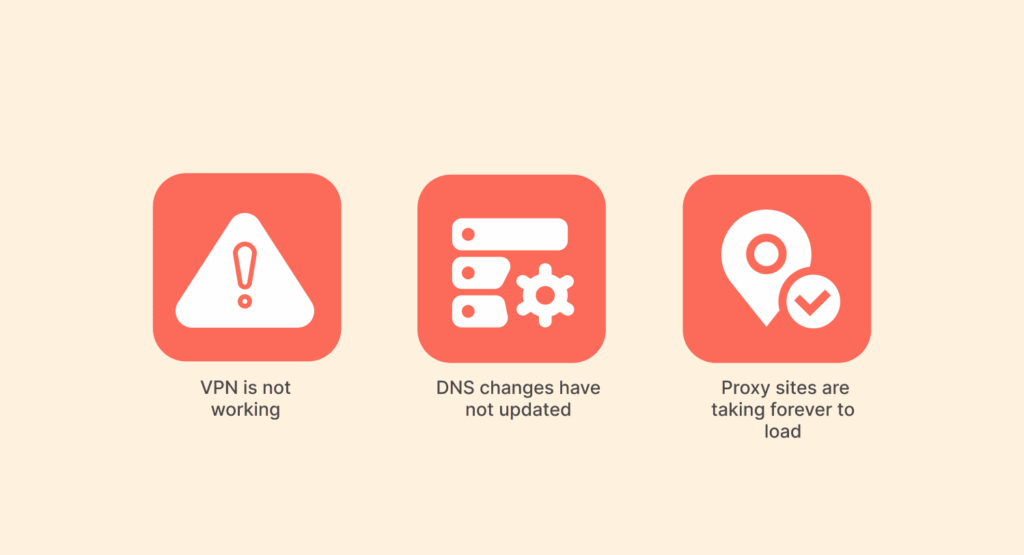
1. VPN is not working
- Change servers: If one server location does not work, try switching to a different country or city.
- Switch protocols: OpenVPN to IKEv2 or WireGuard in the app settings.
- Restart or disconnect: Disconnect and reconnect to VPN or restart your phone to refresh your VPN session.
- Clear your browser cache: Sometimes a loaded cache or saved exploring data messes up the entire connection aspect going forward.
2. DNS changes have not updated
- Forget and reconnect to Wi-Fi: This will force your device to use new DNS settings for connection.
- Reboot the device: A complete restart (and potentially fix any DNS configuration issues) is the best way to start fresh.
- Use other DNS servers: If one set (like Google) isn’t working, you could try other public DNS servers like Cloudflare or OpenDNS.
- Check for conflicts: Make sure other unwanted apps or configurations aren’t overriding your DNS settings for connection.
3. Proxy sites are taking forever to load
- Choose server options that are nearest to you: Generally, the closer the server you’re connecting to is to you, the faster the connection speeds.
- Try other proxy services: Some proxy services are faster than others, and are not all created equal.
- Clear browser data: Any cookies or cache loaded in your browser to be removed may slow your loading efforts.
- Use a wired connection where possible: They are more stable and, for that reason, give a better proxy performance.
FAQs
Well, that will depend on why the website is blocked in the first place and also what you do after unblocking it. Bypassing a filter on a work computer will likely be against company policy, and accessing illegal content is against the law. Unblocking a site, such as a social media site or a news outlet, for personal use is usually not illegal anywhere in the free world.
Even though we suggest you stay away from free versions of VPNs due to data selling and security issues, a couple of quality providers like Proton VPN do offer a free tier that does not limit the data you send. Though speed may be a bit slow, Proton VPN’s free tier is a very good option if you want to access blocked sites on Android for free without spending a dime. Also, this can be a great way to test-run a VPN before you purchase one.
Most famous services like Netflix have advanced systems that detect and block certain VPN IP addresses. To get around that, you’d need to switch to a different VPN server. A good VPN provider refreshes its IPs frequently and is aware of these problems.
A VPN encrypts your internet traffic. A proxy, on the other hand, allows you to route your browsing traffic without any encryption. So, proxies will not be as secure, but there may be an advantage in speed.
Not really. The admin will be able to see that you are connected to a VPN server, but the encryption will hide your activity. So they won’t see the websites you visit, any downloads you do, etc.
There are web-based options that do not require installation, like a web proxy or Google Translate. Great for quick fixes while mobile.