Every time you type a website address into your browser, your device has to figure out where that site actually lives on the internet. Doing this from scratch every single time would slow everything down. That’s where DNS caching comes in.
DNS caching is a behind-the-scenes process that stores recently requested domain name information so your device, browser, or network doesn’t have to repeatedly ask DNS servers for the same data. The result? Faster page loads, reduced network traffic, and a smoother browsing experience.
This guide breaks down what DNS caching is, how it works at different levels (browser, OS, router, and ISP), its benefits and risks, and when—and how—you should clear your DNS cache
What is DNS, and how does it work?
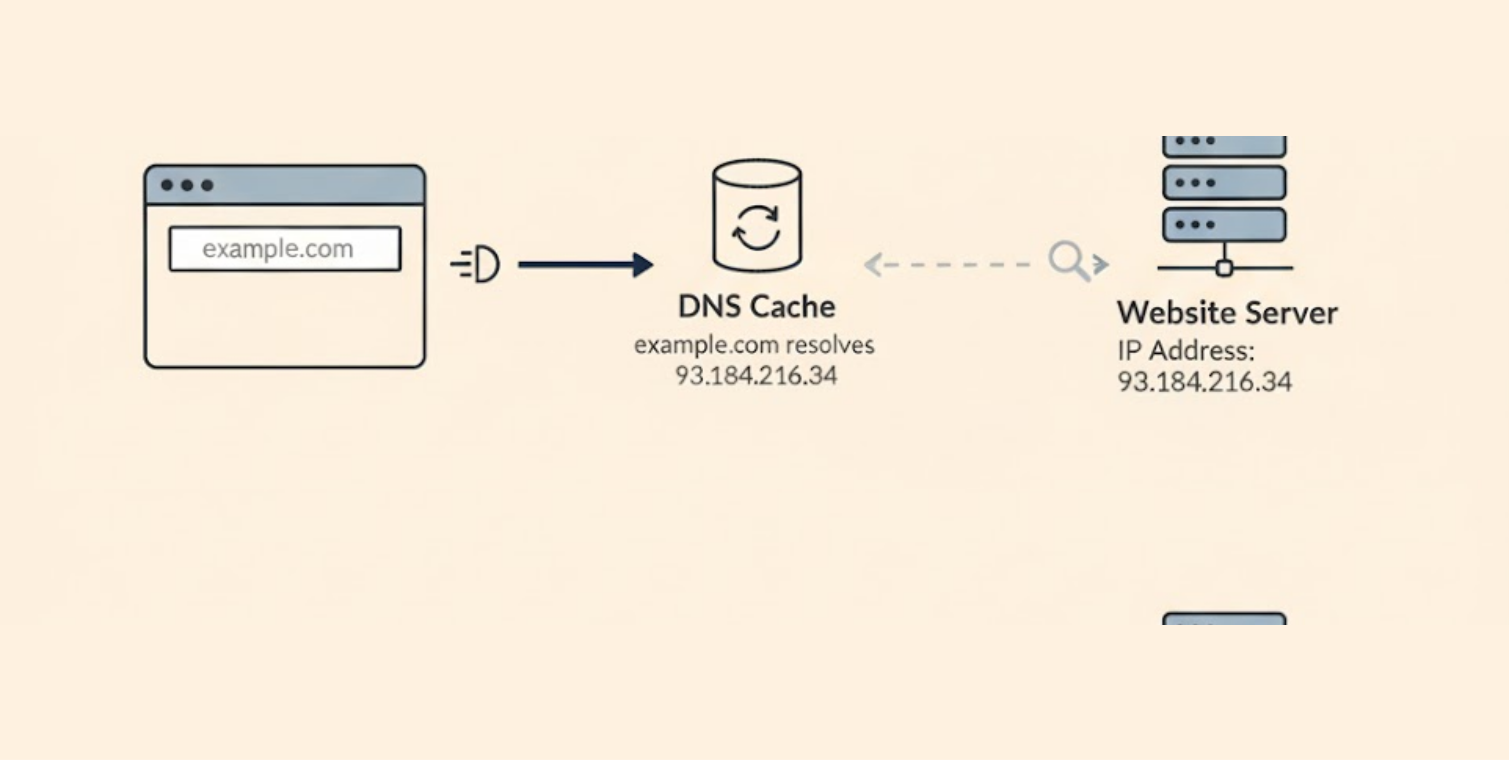
Before we get into caching, we need to understand what DNS is. Think of Domain Name System (DNS for short) as the internet’s phonebook. You don’t memorize your friends’ telephone numbers; you look them up by their name. In the same way, instead of remembering the long string of numbers like 142.251.42.206, you type google.com.
That string of numbers is called an IP address—the real location of a website on the internet. The DNS is how you look up the name (google.com) to find its number (142.251.42.206). This process is called a DNS query.
Similar to how you would ask directions to locate the address of a house you’ve never been to before, a standard DNS query involves several steps and checking in with different servers until it finds the correct IP address. (If you want to use public or free servers, read this guide to explore.)
This takes time—precious milliseconds that can add up very quickly. And if nothing is done to make it faster, you could spend several minutes before you are able to load a website. All that waiting can be really frustrating. This is where DNS caching swoops in to save the day.
So what is DNS caching?
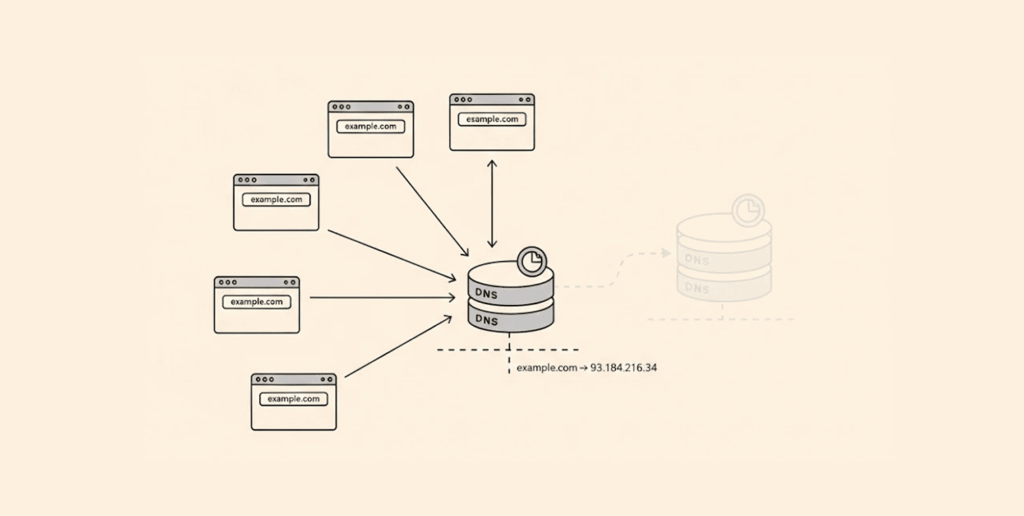
To put it plainly, DNS caching is just the temporary storage of DNS records. In essence, it’s your computer’s way of remembering website addresses so it doesn’t have to ask for directions every time it wants to visit one. You can think of DNS caching as your browser’s contact list for the internet.
It’s like writing down a number you frequently call on a sticky note rather than looking up the number in the phonebook every time.
Once your computer has looked up the IP address for a website, it stores that information locally. The next time you go to that website, your computer doesn’t have to go through an entire lengthy query to get to the destination address. It simply checks its local “sticky note” (the cache) and brings up the page right away. Seriously, it’s that simple.
How does DNS caching actually work?
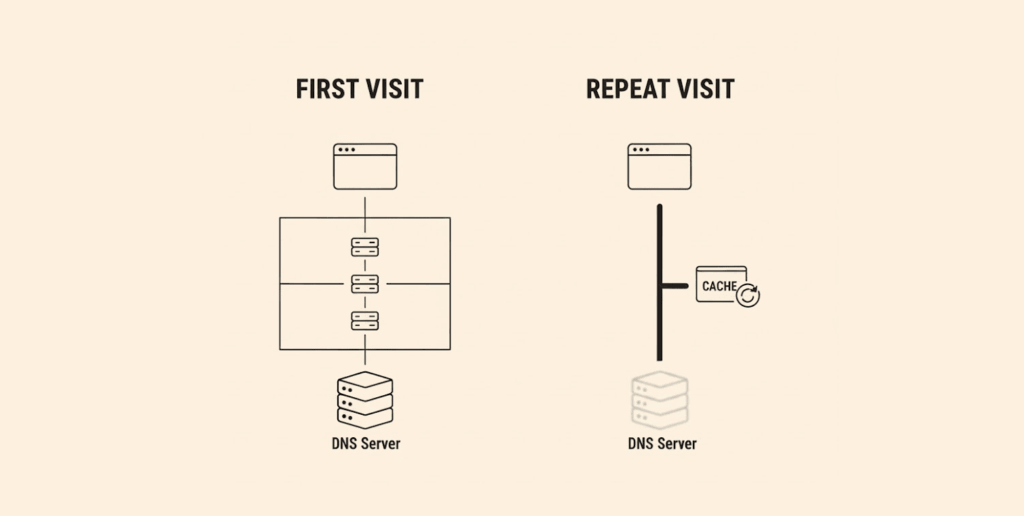
It is a brilliant process that exemplifies efficiency, and here’s how it works:
- You enter a URL (let’s say, whateverwebsite.com) into your browser and hit Enter.
- Your computer first looks in its local DNS cache (“sticky note”) to see if it already knows the IP address.
- Cache Hit: If the IP address is already cached locally, great–The website will load instantly without further delay; no other steps are needed.
- Cache Miss: If the address isn’t already cached, your computer sends a query to a recursive DNS server typically operated by your Internet Service Provider (ISP). A recursive server has its own cache, but it’s typically larger.
- If the recursive server already has the info (relevant IP address) cached, it will return that information to your computer. The computer then stores the IP address locally and loads the site.
- If the recursive server wasn’t able to find it in its cache, the full DNS lookup process begins. This involves sending queries to multiple authoritative servers repeatedly until a correct IP address is found.
This layered caching process significantly reduces the average time it takes to resolve DNS queries. It minimizes network traffic and reduces the load for the authoritative DNS servers. That’s a win-win for everyone.
Types of DNS caching

Understanding the types of DNS caching will help you fix issues and enhance performance:
- Browser-level DNS caching: This occurs in your web browser. Chrome, Firefox, Safari, and other browsers have their own DNS caches storing DNS requests for quicker access to websites during your browsing session.
- Operating system-based DNS caching: It stores system-wide DNS records. Each OS (Windows, MacOS, Linux) handles DNS caching differently, but they all do the same thing: enable faster DNS resolution for all applications on the system.
- Router-level DNS caching: Provides the DNS cache for all devices on the network. Your home, office, or any type of router can store DNS records locally for all attached devices, which could be anything, including smartphones, smart TVs, etc.
- DNS resolver caching: This can be done at your ISP or a third-party DNS resolver service, like Google DNS or Cloudflare. They have very large caches designed to serve thousands or even millions of users.
- Recursive resolver caching: The load on the DNS infrastructure can be reduced by caching the result of queries to serve potentially future requests from any client.
- Authoritative DNS server caching: This allows authoritative DNS servers to provide faster answers for queries, especially with complicated configurations.
- Content Delivery Network (CDN) caching: It speeds up the time to resolve a domain name and directs users to the server with cached content that is nearest to them. This helps to reduce latency and improve load times.
- Host file caching: Acts as a manual override for DNS resolution, where your system checks a local hosts file first before making any DNS query.
Where are DNS records cached?
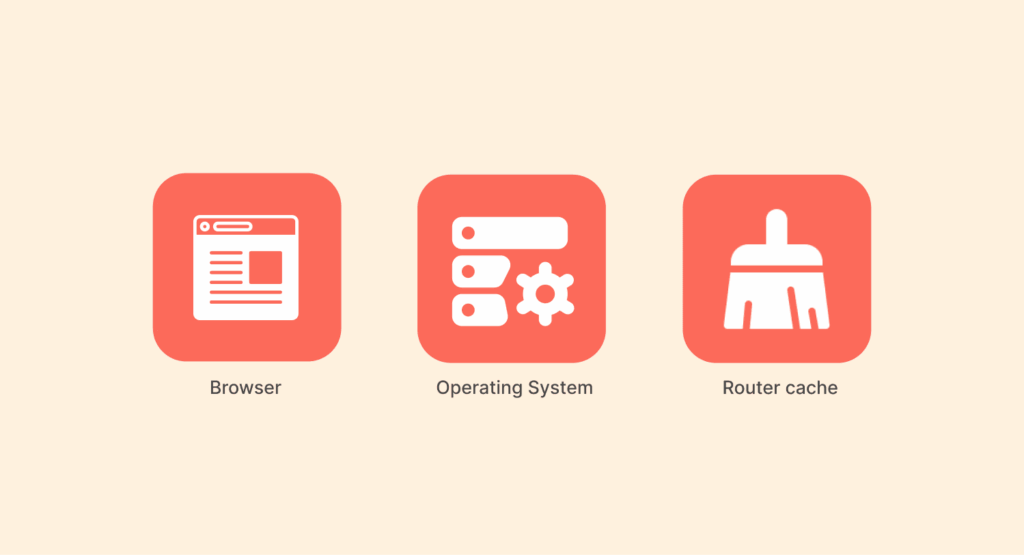
Caching doesn’t just happen at one point; it happens at many levels to create a more efficient chain of information:
- Browser: Popular (and private) browsers such as Chrome, Firefox, and Safari each have their own DNS cache. They have a minimal database of sites or domains you have recently visited. They want to resolve lookups as quickly as they can without having check your operating system. (Good for speed, isn’t it?)
- Operating System (OS): Your PC’s OS (Windows, macOS, Linux) also has a local DNS resolver and its own cache, often called a “stub resolver.” It serves as a fallback when the browser cache does not work.
- Router cache: Helps every device on your network by locally storing DNS records that are commonly requested.
- Recursive resolver: Your Internet Service Provider (ISP) or a third-party service, such as Google DNS or Cloudflare, provides it to you. It’s a massive cache that serves all users on the network, making it very important for improving speed. When the DNS record is stored at the recursive resolver, there will be no need to query the authoritative DNS servers ever now and then.
Every cached record has a TTL (Time to Live) value assigned, which is essentially a built-in expiration date, which ensures you do not get stuck with outdated info while still enjoying fast speeds.
How to view the DNS cache

At times, you may want to look at what is stored in your local cache. You may be troubleshooting a connection issue, or you’re just curious.
Depending on what type of operating system you have, viewing your DNS cache may slightly differ, but it is definitely not complicated (once you know the right commands).
View the DNS cache for Windows
Windows makes it remarkably easy to see your DNS cache using the Command Prompt (cmd):
- Press Windows + R to access the Run dialog.
- Type cmd and open the Command Prompt.
- Type ipconfig /displaydns and hit Enter.
- Now you will see a complete list of cached DNS entries with their domain names and IP addresses.
You’ll get cached entries with the TTL values and record types. You will see the A records (IPv4 records), AAAA records (IPv6 records), and any other DNS record types you have cached.
How to view the DNS cache in macOS
For Mac users, the process is a bit different because macOS doesn’t offer a built-in command to view the DNS cache directly. You can, however, see the DNS queries as they happen:
- Open Terminal (Applications > Utilities > Terminal).
- Type sudo dscacheutil -cachedump -entries Hostto get basic cache information.
- To see real-time DNS queries, type sudo log stream –predicate ‘subsystem == “com.apple.network.dnsproxy”‘.
Viewing the DNS cache in Linux
Most Linux systems don’t cache DNS records at the OS level by default. But some programs, like systemd-resolved or dnsmasq, might enable you to cache entries locally.
For systemd-resolved systems:
- Open Terminal
- Type systemd-resolve –statistics to see cached statistics.
- Type systemd-resolve –status to see the full DNS configuration information.
What are the threats to DNS caching?

Sadly, the system we describe is not a perfect system. Many different security threats can turn this useful service into a liability. Caching presents a particular security threat:
1. DNS Cache Poisoning (or DNS Spoofing)
This malicious attack occurs when a hacker inserts a fake DNS record into a cache, causing the system to direct users to malicious websites instead of legitimate ones. In other words, the hacker convinces the system to store an incorrect IP address.
For example, a hacker could make yourbank.com point to a phony website that looks identical to it. If your recursive resolver gets poisoned, anyone using it can be directed to the fake website without knowing it. This is an especially brutal way to steal someone’s login credentials, personal information, or to install malware.
How does this occur? Generally, exploits of faults in DNS software deceive the resolver into believing the faux response was legitimate.
2. Expired records
This creates a different area of risk. If a system does not record its cache properly or does not respect TTL values, the user may be routed to an obsolete or potentially compromised server.
3. Man-in-the-middle attacks
This can socially engineer the DNS request, intercepting it and injecting fraudulent responses into caches. These types of attacks happen more often on unsecured networks, such as public Wi-Fi, and can be really dangerous.
These threats show why DNS security standards, such as DNSSEC (Domain Name System Security Extensions), have now become a must-have for protecting cached DNS data.
Benefits of DNS caching

So why put up with the security risks? The upside is huge. The benefits affect every part of your internet experience:
- Reduced latency: This is the most obvious benefit. Getting the IP address from a local cache is much faster than a complete DNS query. That means websites will load faster.
- Conserves bandwidth: Every DNS response is a small piece of data. When you multiply that by billions of requests, you’ll see that caching saves a tremendous amount of bandwidth on the network. For organizations with limited available bandwidth, this translates to real cost savings.
- Enhanced reliability: If the primary DNS servers go offline, the cached records become a backup. So users can still reach a website using the cached IP address, which increases overall reliability.
- Reduce load on servers: Caching prevents the primary DNS servers from being overloaded with traffic or requests for the most popular websites.
- Enhanced user experience: Improved load times, fewer connection failures, and smoother browsing lead to a significantly better internet experience.
Is local DNS good for gaming?

Yes, in online gaming, every millisecond counts – this is your ping time. A low ping time is essential for better gaming. Caching your local DNS resolver provides some real benefits when gaming, especially in multiplayer gaming. When you connect to a game server, your device has to resolve the server domain names to the correct IP address.
The local DNS cache ensures that the lookup for the game server address is almost instant, shaving off valuable time before a connection is even established. Sure, it’s not going to fix a slow internet speed, but it’s one less bottleneck between you and your daily score, giving you the best possible start.
Benefits of gaming include lower connection latency, faster server switching, and more stability for extended hours of gaming. If you want to have a better gaming experience, we advise you to opt for a reliable and fast gaming VPN service. You can choose one of our top-recommended options from this article.
Gaming, however, does pose certain DNS caching challenges. The first is that game servers change their IP addresses very frequently for load-balancing reasons, and stale cache entries may connect you to a server that is overloaded or simply in maintenance mode. Regular cache clears help you to maintain optimal gaming performance.
Best practices for DNS caching management

Smart management is crucial if you want to enjoy the speed without the risks. So:
- Set appropriate TTL values: Time-to-Live (TTL) is a timer for every DNS record that informs caches how long to store it. The longer the TTL values, the faster the speed, but the slower the propagation of changes. The shorter the values, the quicker changes are acted upon, but it can potentially increase the query load. It all depends on balancing.
- Monitor and clear cache regularly: For network admins, monitoring the health of the cache on the DNS servers is important for avoiding bottlenecks. In daily use, you can monitor your cache too, and clearing your cache each session can help resolve “cannot find server” browser errors.
- Use Secure DNS Protocols: You can implement protocols like DNS security extensions (DNSSEC). DNSSEC will cryptographically sign DNS records so that it is almost impossible for an attacker to poison a cache with fake records.
- Keep Software Updated: Always ensure that your OS, browser, and router firmware are all updated. Security patches, most of the time, include fixes for DNS vulnerabilities.
- Configure multiple DNS servers: This ensures redundancy and avoids single points of failure. Primary and secondary DNS servers can be used in succession as fallback options if one of them encounters a problem.
Keep an eye on cache performance by utilizing built-in tools or third-party programs. Measure caching hit rates, query response times, and error rates, then watch for indications of possible optimizations.
How to clear DNS cache

Sometimes you just need a fresh start. When you clear DNS cache (also called flushing), you are forcing your system to get new DNS records rather than depending on old caches, which may have become outdated.
Clearing Windows DNS cache
- Press the Windows + R keys and type “cmd.”
- Right-click on Command Prompt and select “Run as administrator.”
- Type ipconfig /flushdns and press Enter.
- Wait until the confirmation reading “Successfully flushed the DNS Resolver Cache” pops up.
Clearing macOS DNS cache
- Open Terminal (Applications > Utilities > Terminal)
- Type sudo dscacheutil -flushcache and press Enter
- Enter your administrator password when prompted
- The cache clears silently – no confirmation will come up.
Clearing Linux DNS cache
How you clear DNS cache on Linux depends on your DNS caching solution:
- If your solution is systemd-resolved, then use this command: sudo systemctl flush-dns
- If your solution is dnsmasq, then use this command: sudo systemctl restart dnsmasq
- If your solution is BIND, then use this command: sudo rndc flush
Clearing browser DNS cache
Each browser clears its cache differently:
- Chrome: Go to chrome://net-internals/#dns in the address bar, and then click “Clear host cache.”
- Firefox: Go to about:networking#dns in the address bar, and then click “Clear DNS Cache.”
- Safari: To clear Safari’s DNS cache, you will need to clear all browsing data in the Preferences > Privacy > Manage Website Data.
How to fix problems with DNS cache

Problems with the DNS cache appear in various ways: websites won’t load, redirects won’t work, and intermittent connectivity issues. Here are some ways to troubleshoot common problems:
- First, flush the DNS cache. With many DNS-related issues, flushing the cache clears already-cached records and forces a fresh lookup, which will solve a lot of problems.
- Verify your connection to ensure your internet connection is stable.
- If problems still persist, look at the TTL values. If you have executed a command to change the DNS records but have very long TTL values, it might be that your system is not getting up-to-date DNS records. You may want to switch to DNS servers that offer a more reasonable TTL policy.
- Always check the DNS server configurations to make sure you have reliable, fast DNS servers. A few popular options are Google DNS (8.8.8.8), Cloudflare (1.1.1.1), and Quad9 (9.9.9.9).
- If possible, test if the problem consistently affects different devices. If all your devices are affected, it is likely an issue with your entire network. If one device consistently has problems and others do not, the problem likely lies with one of the device’s DNS caches becoming corrupted.
- Keep track of your network switching, especially if you are on mobile devices. The cache may not be consistent if you frequently switch between Wi-Fi and cellular data.
- Restart network services: Sometimes issues with the network stack may require restarting either the network adapter or even restarting the whole network subsystem.
- Check for malware: DNS hijacking malware is another culprit that could interfere with normal DNS caching behavior. If the DNS issue continues to persist, run a thorough antivirus scan. (We’ve highlighted top-performing antivirus software in this guide.)
- Check router settings: DNS problems on the router level can affect all devices connected to the network. Check your router DNS settings, and possibly restart the router.
What is DNS cache flushing?

DNS cache Flushing refers to the complete removal of the stored DNS entries from your device’s memory. Flushing the cache forces your device to perform new DNS lookups for all future requests instead of responding with cached information that has gone stale or outdated.
Cache flushing is necessary when a change in DNS records occurs, but the cached records have not expired. This occurs frequently with website migrations, hosting or server upgrades, or updates to the sites, and also when you are troubleshooting connectivity issues.
DNS cache flushing happens in various ways depending on the system, but it always involves running administrative commands to purge DNS cache entries immediately. Most operating systems have built-in applications for flushing DNS cache, but the commands differ depending on the OS (Windows, macOS, or Linux).
Flushing the cache regularly is often not something everyday users do, but it is an important tool for troubleshooting issues when websites load incorrectly or when you suspect DNS-related issues.
Choosing the right DNS server
Your DNS server can significantly impact caching performance, as well as security. So you need to consider this before choosing one. Some popular options include:
- Google Public DNS (8.8.8.8, 8.8.4.4): Provides very reliable DNS performance for good speed anywhere in the world; however, it has sparked some concerns about privacy among some users.
- Cloudflare DNS (1.1.1.1, 1.0.0.1): Markets itself as the fastest DNS resolver in the world, and its product focuses on privacy and speed.
- Quad9 (9.9.9.9): Focuses on security issues by blocking access to domains known for malicious activities, while still maintaining good performance.
- OpenDNS: It offers content filtering beyond just simple DNS resolution requests. It is especially popular among residential customers as well as businesses.
You may also use the default DNS servers that your ISP provides. Most of the time, this works just fine. But it is worth experimenting with other options, which you may find give you better speeds and security.
Common DNS cache errors and when to fix them

- DNS_PROBE_FINISHED_NXDOMAIN – Means your system is unable to resolve the requested domain. Try clearing your DNS cache or changing to another DNS server.
- Server DNS address could not be found – Possibly due to a connectivity issue. Check your internet connection and DNS server configuration.
- DNS server not responding – This means that your DNS server is not reachable. Consider switching to alternative DNS servers, such as Google DNS or Cloudflare.
- Websites taking a long time to load, even when the internet speed – This is often a sign of DNS resolution delays. Try to switch to faster DNS servers or check if the cache is broken or corrupted.
- Websites loading old content – This might be a result of outdated DNS cache entries. Try flushing your cache to force fresh lookups.
FAQs
DNS caching is about making browsing easier and has little effect on your privacy. Although DNS queries provide DNS providers with information about your browsing patterns, you should only use reputable services if you are concerned about this.
Flushing your DNS cache is not typically necessary for most users. Only flush your DNS cache when troubleshooting connectivity problems or when making changes in your DNS configuration.
Yes, cache poisoning and stale cache can lead to sites not loading properly. Flushing your DNS cache usually clears up these issues immediately.
Yes. When you are using a VPN, the VPN provider’s DNS servers generally send and resolve your DNS queries, not your ISP’s DNS servers. Your local OS will still cache the results, but the recursive resolver cache that you are using is the VPN’s. A good VPN will also provide a second layer of security against DNS spoofing and attacks.
Certainly. Since local DNS caching reduces latency and load times when switching servers in online games, running local DNS caching can improve your overall gaming experience. But flush your cache regularly so you do not connect to an overloaded server!
DNS caching is simply storing DNS records for future reference, while DNS poisoning could be a malicious attack by injecting some rogue DNS record into a cache to redirect traffic to a fraudulent or fake website.
It depends on the Time to Live (TTL) value set by the owner of a domain. TTL values are often between 300 seconds (5 minutes) and 86400 seconds (24 hours).
Technically, yes. However, disabling DNS caching would slow down your internet browsing and generate a lot more traffic on your network. Therefore, we do not recommend it for regular users.
No, flushing the DNS cache only removes the list of stored domain-to-IP address mappings. It will not erase browsing history, cookies, and other browser data.
When operating on an Android device, DNS caching can become corrupted if the device has switched between multiple networks frequently. Restarting the device might help, or switching to a different DNS server in your Wi-Fi settings.