With so many advancements in mobile phone technology, especially the Android smartphone, users can get multiple features in one device. The Android device comes with GPS directions, a camera capable of capturing images and recording videos, a portable music player, and a nifty browser that you can use to start and finish a home mortgage application.
With Android 15 and 16 now rolling out to millions of devices, Google has made backing up easier than ever—but also more fragmented across different manufacturers. Whether you’re on a Samsung Galaxy S25, Google Pixel 9, or a Xiaomi device, knowing where your backup settings live is half the battle.
This guide answers all of your questions and can help you back up your data on an Android. We’ll also teach you how to hide data on your Android device.
How to back up your data on your Android – Quick list of methods
In a rush? Read these quick steps to explore how to get your data back on your Android device:
Reasons for backing up your Android phone
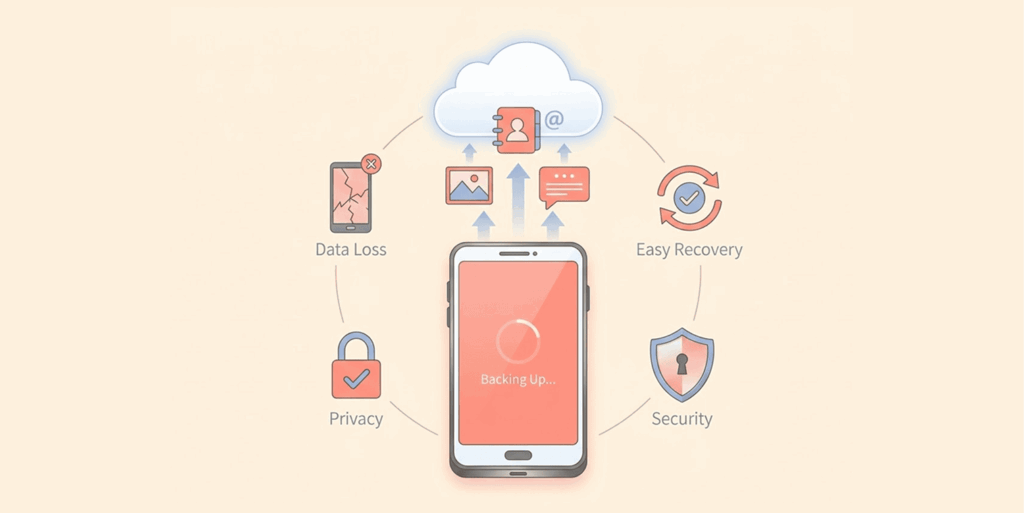
With so much to get our heads around, you must have a means to alleviate some of the stress you encounter. A smartphone is one such means. It is designed to increase productivity and improve the quality of life. If you were to lose your phone, the consequences could be discomforting.
With so much dependency on tech today, losing your phone can mean losing:
- Pictures and videos
- Contact phone numbers
- Important documents
- Notes you made on your Android device
But did you know that when you get a new device, you can have all the files from your old device, along with the settings, transferred onto it? Well, now you do. When you back up your device data, save your settings, passwords, and everything else for future restoration.
Note that you can do a backup and restore even if you do not lose your phone, like if you got a new one and need to move data. The restore will spare you the hassle of installing your old apps all over again; all you need to do is restore the backup, and you get it all back.
1. Using the settings app to back up your Android phone
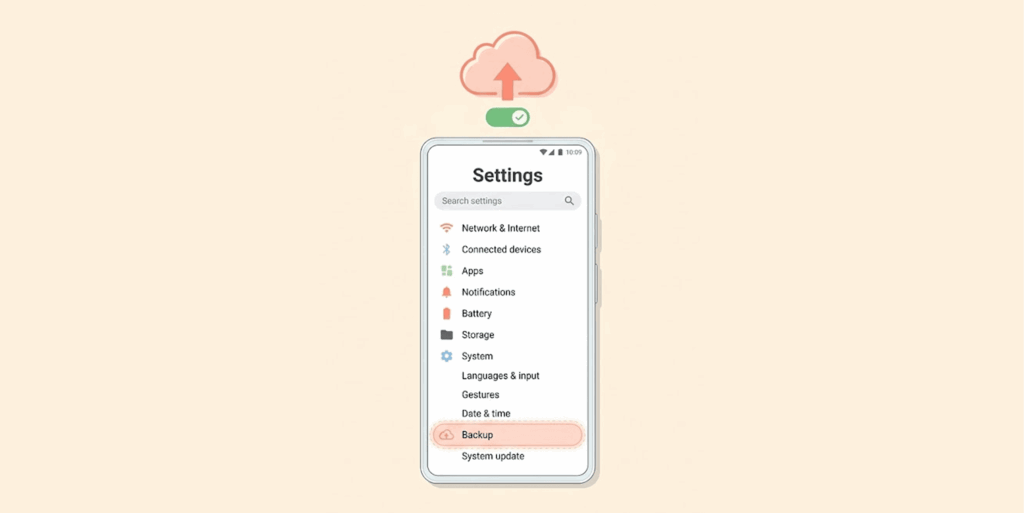
Executing a backup on an Android device was tricky, but now it’s a much easier operation. Ensure you are signed in to your Google or Samsung Account, depending on your device.
Below is a detailed guide with steps on how to create a backup with your Android device:
For stock Android (Google Pixel, Motorola, Nokia):
- Open Settings > Google > Backup.
- Toggle “Backup by Google One” on.
- Tap “Back up now.”
On Samsung Devices (One UI 6.x/7.x):
- Open Settings > Accounts and backup.
- Tap Backup data under Samsung Cloud.
- Select your data types > Back up now.
For Xiaomi (HyperOS):
- Open Settings > Mi Account > Mi Cloud.
- Tap Backup device > Back up now.
On OnePlus/Oppo (ColorOS):
- Open Settings > Cloud and accounts > Backup & restore.
2. Using Google Drive to back up your Android phone
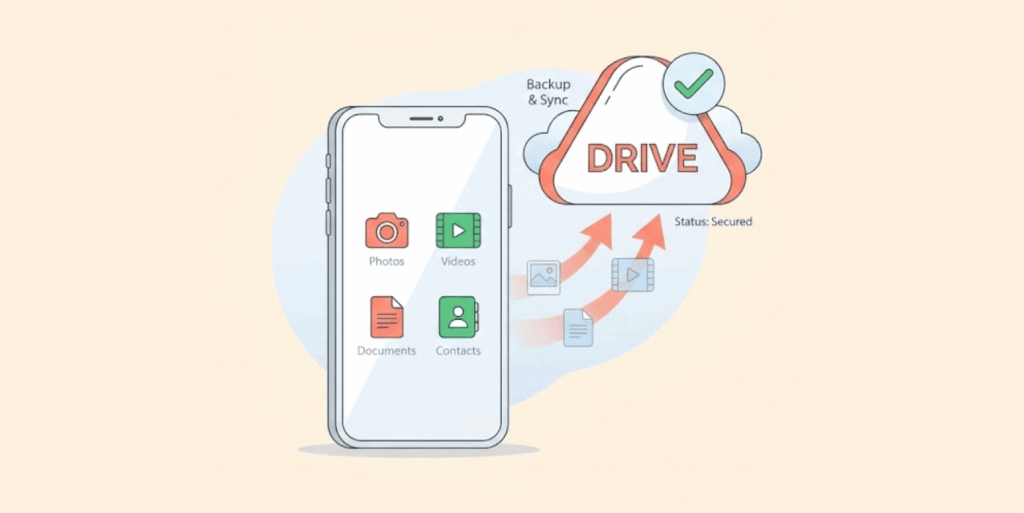
The steps for backup work great if you use a Samsung, and for other brands, there is a unique cloud for their users. For regular Android users, they can use Google Drive; here’s how:
- Head on to “Settings.”
- Choose “Accounts and backup.”
- Under “Google Drive,” select the “backup” option.
You can preview the data you want to back up and see information about each file. Information on the exact SMS you want to save, apps, call history, etc.
- Click on “Back up now” to initiate the backup.
Pro tip: Google One backups are encrypted and don’t count toward your storage quota for Pixel devices. Other Android users get 15GB free (enough for several full device backups).
3. Backing up your Android phone data with a PC
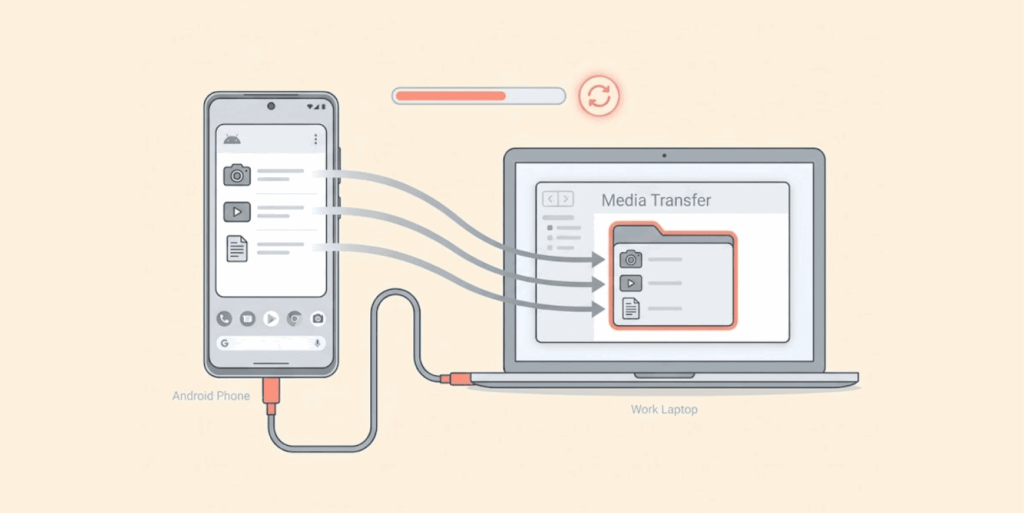
A backup is not limited to cloud storage; you can also execute a backup on an external device. If you wish to do the latter, consider using a PC. You can use many ways and apps to accomplish this, including SyncDroid, APowerManager, and Dr. Fone.
The PC method is considerably the most straightforward, but it’s not the fastest; here’s how you can make a quick backup with your PC:
- Connect your device to the PC using a USB cable and allow the PC to load your Android and its accompanying files.
- Your Android should notify you of the connection and ask permission; click on it.
- Select “File Transfer” or “USB File Transfer.”
- Copy the files to the Android.
- Paste the files into a designated folder on the PC.
This is a relatively quick process since you can identify the files you wish to back up and their contents in mass storage. It can take a long time to attempt this type of backup. Note that you do not need to save “system files” so don’t copy them onto your PC.
4. Data restoration from a backup
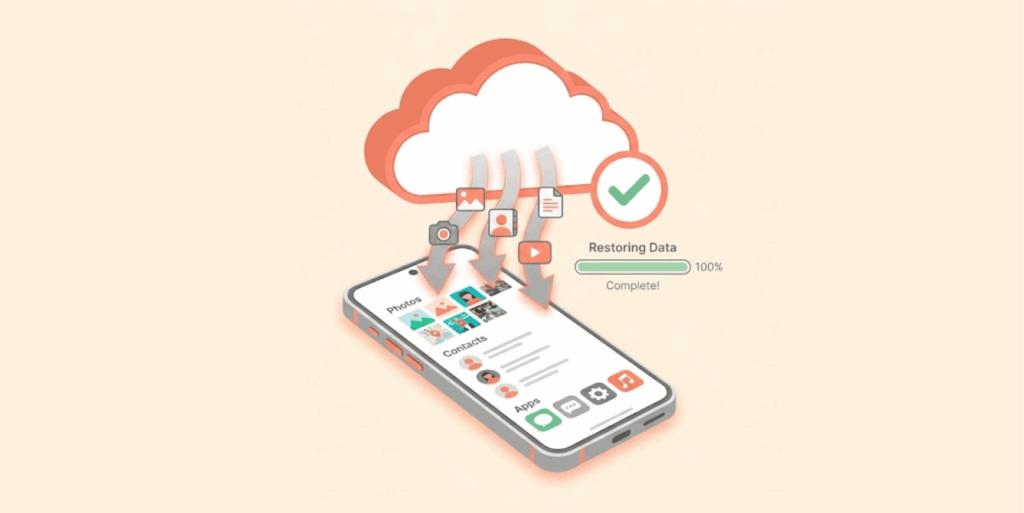
This is relatively easy when you switch to a new phone or erase your current device and need to restore the backup. You must go to your backup menu for most phone brands and select “Restore.” Samsung users need to download the Smart Switch app.
Below is how to restore from a backup:
- Open the “Settings” app.
- Select “Accounts and Backup.” If you use Samsung, open the Smart Switch app and click “Bring data from old device.”
- If you wish to restore from an external drive, select External Storage Transfer.
- Follow the prompts that follow to complete the data restore.
For a new device, you must sign in to your Google account as usual and select the option to restore from backup. Accept the option and complete the following prompts to restore your device’s data fully.
How to hide data on your Android device
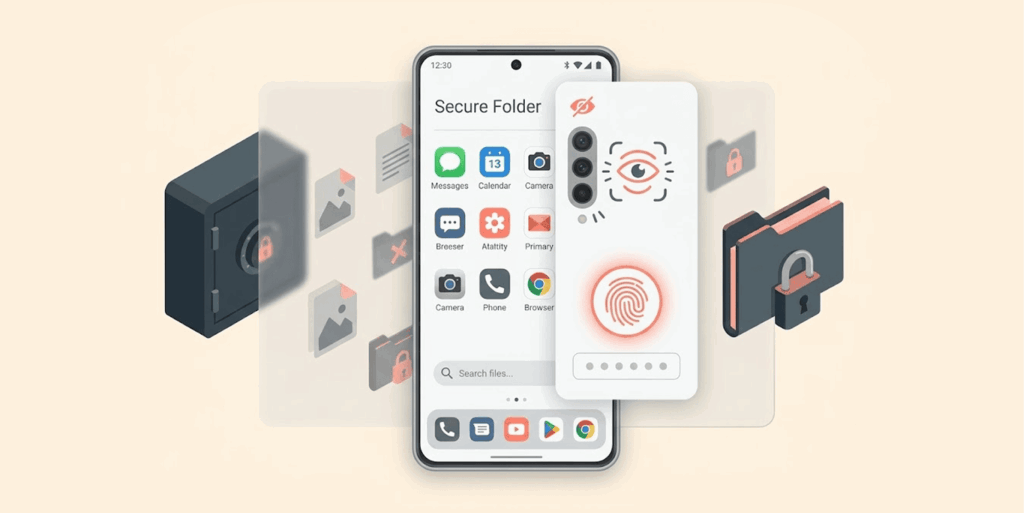
Backing up is smart, but sometimes you need certain files to stay invisible to anyone else using your phone. Here’s how to hide sensitive data on Android in 2026:
1. Secure folder (Samsung)
Samsung’s Secure Folder creates a password-protected, encrypted space on your device. It’s the gold standard for Android data hiding.
How to set it up:
- Open Settings > Security and privacy > Secure Folder.
- Sign in to your Samsung account.
- Choose lock method (PIN, pattern, or biometric)
- Tap Add files to move photos, videos, documents, and even apps into the encrypted folder.
What you can hide: Photos, videos, audio files, documents, and complete apps (with their data).
2. Locked folder (Google Photos)
Google Photos now includes a Locked Folder feature for hiding sensitive images.
How to use it:
- Open Google Photos.
- Select the photos/videos you want to hide.
- Tap the three-dot menu > Move to Locked Folder.
- Authenticate with your device PIN or biometrics.
Note: Locked Folder items won’t appear in your main photo grid, shared albums, or memories. They’re also excluded from cloud backup.
3. Parallel space/dual apps (Xiaomi, OnePlus, Oppo)
Many Chinese manufacturers include built-in app cloning that creates isolated, password-protected copies of apps.
On Xiaomi (HyperOS):
- Open Settings > Apps > Dual Apps
- Toggle ON for apps you want to clone.
- The cloned app appears with a yellow badge and operates completely separately.
On OnePlus/Oppo (ColorOS):
- Open Settings > Tools > Parallel Apps.
- Select apps to clone.
4. Third-party apps
If your phone lacks built-in options, try these trusted apps from the Play Store:
- KEYSafe – Encrypted vault for photos and videos
- Andrognito – Hide files with military-grade encryption
- File Hide Expert – Simple interface for beginners
5. Create a hidden user profile (advanced)
Android’s multiple users feature can create a completely separate profile that requires a different PIN to access.
- Open Settings > System > Multiple users.
- Tap Add user > OK.
- Set up the new profile with its own Google account and apps
- Switch between profiles from the lock screen or quick settings
Warning: This creates a completely separate environment. Files in one profile are invisible to the other.
Keeping your Android phone safe from hackers
A backup can be useful when faced with malware infestation, especially since deleting the infected app or file may not be enough. Sometimes, you might need to complete the device reset to erase the malware. This means losing all your saved data, which would not be true if you had a backup lying or floating around.
But in the event of a hack attack or when your mobile gets infected with a virus, the risks extend beyond simply losing your files; there is also a significant threat to your privacy. All of your sensitive data, including sign-in details, can get stolen, leading to identity theft or loss of funds in bank accounts.
To protect yourself against such an outcome, do this:
- Subscribe to a good VPN like NordVPN.
- Ensure your device is locked with a unique passcode.
- Do not connect to public wifi without VPN protection.
- Regularly sanitize your device, deleting old and rarely used apps and other files.
NordVPN to protect your Android from hackers

A stealth VPN service that helps you secure your device from hackers and other third parties with its robust security features.
 Has over 8,400 secure VPN servers in more than 60 countries worldwide
 Owns reliable threat protection (malware, tracking, and ad blocker)
 Implies industry standard, most secure encryption: AES-256
 An effective and easy-to-use kill switch feature
 Split tunneling feature with high functionality
 Offers multi-hop VPN for double encryption
 Provides seamless Onion over VPN functionality
 Ensures that no logging is done
 Users can connect up to ten devices simultaneously with each account
 A 30-day full-refund guarantee with no questions asked
Pros
- Owns an unbreakable encryption method
- No data throttling
- Unblocks almost every streaming platform
Cons
- Desktop app has some bugs
NordVPN is an excellent protection against hackers and a helpful cybersecurity tool to stay private while surfing the web. The VPN service has optimized client apps for Android devices. And no, NordVPN does not have fewer features for the mobile version; you are assured of its full range of server options, all 8,400.
You also get the above decent security features and privacy protocols, which include its AES 256-bit encryption, Threat Protection, IP/DNS leak protection, kill switch, and NordLynx. For privacy, VPN has a no-logs policy, which has been externally audited to ensure validity. The NordVPN Android client app is also intuitive and easy to use, making it perfect for users just starting.
If you want to explore more options to secure your Android device, we have put together a detailed list of the top VPN services for Android in this guide.
Backup and restore with the Samsung account
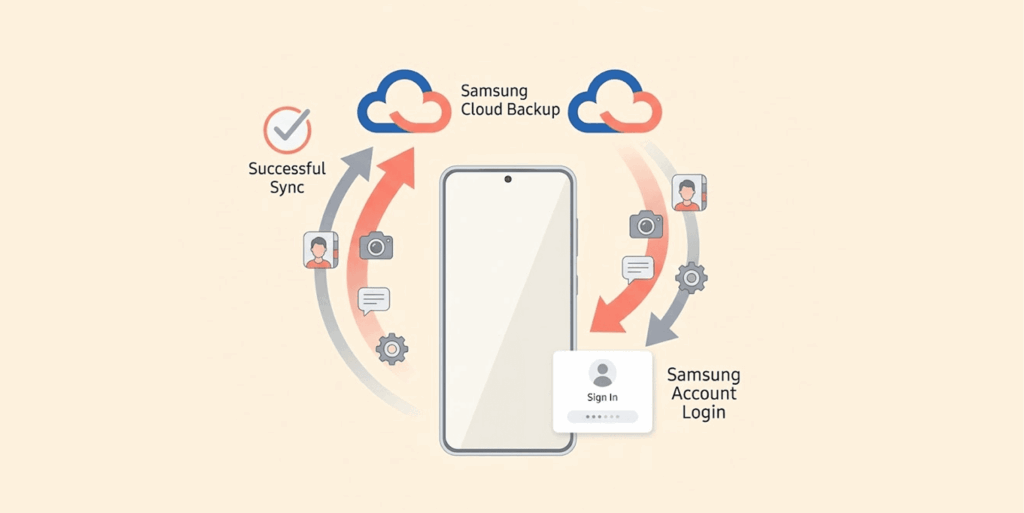
This backup guide is strictly for Samsung users, including those who use mobile phones or tablets. You must also have a Samsung account if you use either of these. You can create one if you do not have one; it only takes a minute. Once that is done, do the following:
- Open “Settings” on your Samsung device.
- Go to “Accounts and backup”.
- In the Samsung account or Samsung cloud, select “Back up data.”
- Once you select the data you want stored, tap “Back up now” to initiate the backup.
Upon completion, you will be greeted with a check mark next to each data type to confirm that the backup has been completed.
- Click on “Done” to complete the process.
The data is now backed up and can be restored at any point. To restore the backed-up data, do this:
- Open the Settings app.
- Go to Accounts and Backup, select Restore data, and select only the correct drive.
- Review the content you wish to see restored.
- Uncheck the ones you wish to erase forever, and then tap restore.
Why is it essential to back up your data
Conducting frequent data backups is not only a good idea but also essential. Ransomware is the biggest reason. Hackers sneak onto your device, encrypt your files, and demand money. Paying doesn’t guarantee you’ll get anything back. A clean backup? That’s your get-out-of-jail-free card. If you want, you can learn what ransomware is and the prevention tips that actually work in our article here.
Nevertheless, in a world where hackers work tirelessly to relieve you of your data or get into your sensitive info pool, having multiple backups is an excellent way to evade their grubby paws. You need to turn on the automated backup option on your device, whether Android, iPad, iMac, or PC.
FAQs
If you wish to back up the whole Android phone, you can easily do this with the Settings app. Open the settings app and scroll to the backup section to start.
Yes, you can; you just need to log in to your Google account on the new device while still logged in on the old one. Samsung lets you do this with its Smart Switch app, while Huawei uses the Phone Clone app.
Modern Android devices are now designed to have automatic periodic backups as long as you are logged in to your Google account. You can check your respective devices to ensure this works for you.
Yes, you can; all you need to do is plug your Android phone into the PC using a USB cable and initiate the transfer of files from your device onto a dedicated folder in your PC.
You can back up your files to Google Drive or Samsung using a Samsung device. You need to be signed in to either cloud service and confirm the settings on your device to proceed.
You absolutely can, but not without some extra help. Backing up Android data to a Mac is possible using apps such as the Samsung Smart Switch and SyncDroid.