If your Mac has started to feel slow, laggy, or just not as smooth as it used to be, there’s a good chance your cache is part of the problem. Over time, your system stores temporary files to speed things up, but instead of helping, these files can pile up and take a toll on performance.
The good news is that clearing the cache on a Mac is much easier than most people think. You don’t need to be a tech expert or install complicated tools. With a few simple steps, you can free up space, fix minor glitches, and give your Mac a noticeable speed boost.
This guide helps you on how to clear cache on your Mac safely and effectively, so you can get it running smoothly again.
How to clear caches on Mac – Quick guide
- Go to Finder and tap Go in the top menu bar.
- Then, click Go to Folder (or you can press Shift + Command + G).
- Then type ~/Library/Caches and press Enter.
- Select the folders and files inside (or press Command + A to select all).
- Move them to the Trash by pressing Command + Delete.
- Empty the Trash folder to permanently delete them.
What is a cache?
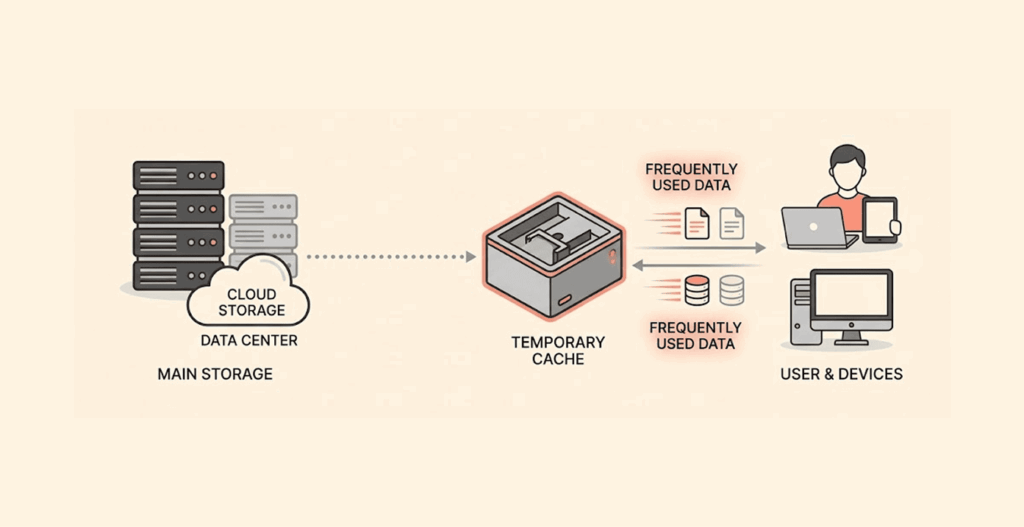
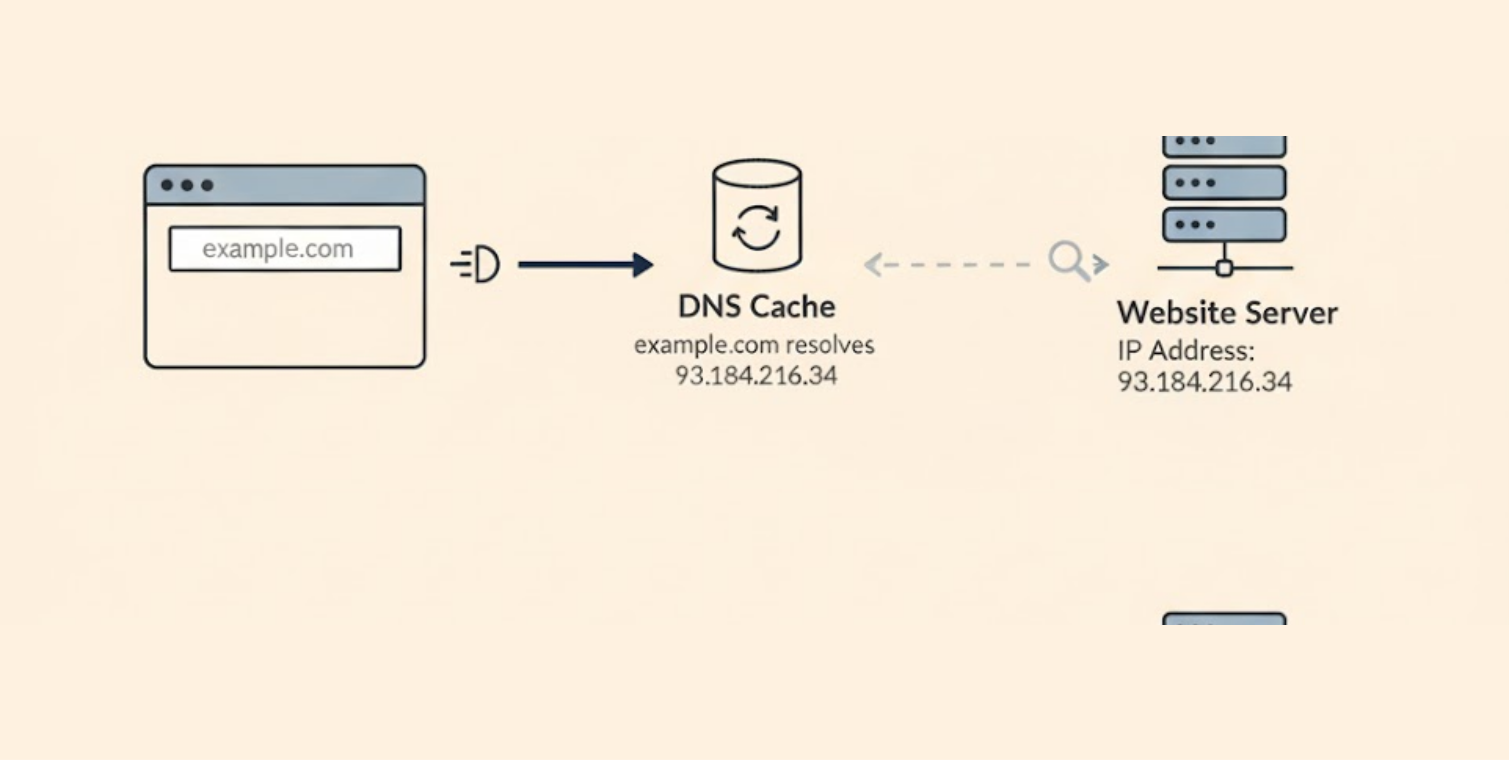
A cache is basically temporary memory for your Mac. When you load a web page for the first time, your browser goes to the internet and fetches everything, images, code, everything on the page, and so forth. The next time you load that page, it’s faster because your computer has already saved some small bits of that page to your hard drive.
You do not have to wait for each button and for each cat meme on that web page to reload on the second visit. That saved local copy is what we call cache.
Now picture this: you walk into your favorite coffee shop, the barista recognizes you, does that thing with their eyes that signals, “I’m on it,” and starts making your usual coffee. You get to skip all the unique details of your order every single day. Can’t lie, that’s pretty nice. Cache is pretty much the same; it’s just your browser’s way of saying, “Relax, I got it, no need to fetch the whole internet again.”
As an example, Safari retains images of your favorite news pages. Chrome saves your login endings for quick access, and your system saves your application preferences.
It’s quite the feature to feel like your favorite tools are merely an arm’s reach away. But herein lies the rub. Over time, cached files start to build and create a digital mess. Old website data gets intermixed with the latest version. Corrupted cached files create app issues. Storage can be consumed with once useful files, but you forgot where they were in place. This is where clearing the cache is essential to optimal performance.
Why do you need to clear cache and cookies on a Mac?
Why should you clear cache and cookies on your Mac? To be clear, it’s not because you are a neat freak. Those little files are very helpful, and they are like having a digital personal assistant, in the very beginning. Eventually, they start taking on the role of a hoarder who never throws anything out.
- Improve performance: To start, let’s start off with speed. Old cache files? Dead weight. Rather than using the most current content, your Mac is trying to access old leftovers, which slows things down. Get rid of the old cache files, and suddenly browsing or your applications feel responsive again.
- Privacy: We all have our own privacy concerns. Cookies let you stay signed in, help customize your experience, but they are also used to track your online behavior (cookies tracking). Some people are ok with cookies tracking their online behavior, but for those who value their privacy, there should be an unspoken rule to clear cookies frequently. And while you’re clearing cookies and cache, don’t forget about your Google search history. Google quietly saves every search you’ve ever made unless you tell it to stop. If privacy matters to you, we’ve put together a complete guide on how to delete your Google search history —it walks you through wiping that slate clean across all your devices.
- Free up space: It’s surprising the kind of junk you can get on your computer. A few GBs here, a few GBs there, your MacBook is wheezing when saving a Photoshop file. Clear some cache and get back some space; it’s as simple as that.
- Resolving technical troubles: The web has gone blank, or you can’t sign in anywhere? Corrupted cache is public enemy number one when it comes to website troubles, and a quick clear-out will resolve most weird issues in seconds.
- Improving security: Security is really important. Your old cache could keep sensitive information that could leak or act as a target for hackers. What’s the fix? Yup, delete it regularly. You can also change your location on a Mac for better security and bypass censorship. If you are concerned that stored caches have caused damage and your device is infected, we advise you to use a stealth antivirus for your Mac. Also, if you want to consider a more advanced option like a VPN, we have put together a list of the best VPNs you can use with Mac.
The best part? Your browser will build up anything that you really need fresh. So honestly, there are no downsides. Unless you really like collecting digital dust bunnies.
How to clear cache on Mac Safari – Detailed guide
Clearing cache on Safari is easier than Apple makes it seem (strange, I know). Here’s how you can do this:
Using Safari Preferences
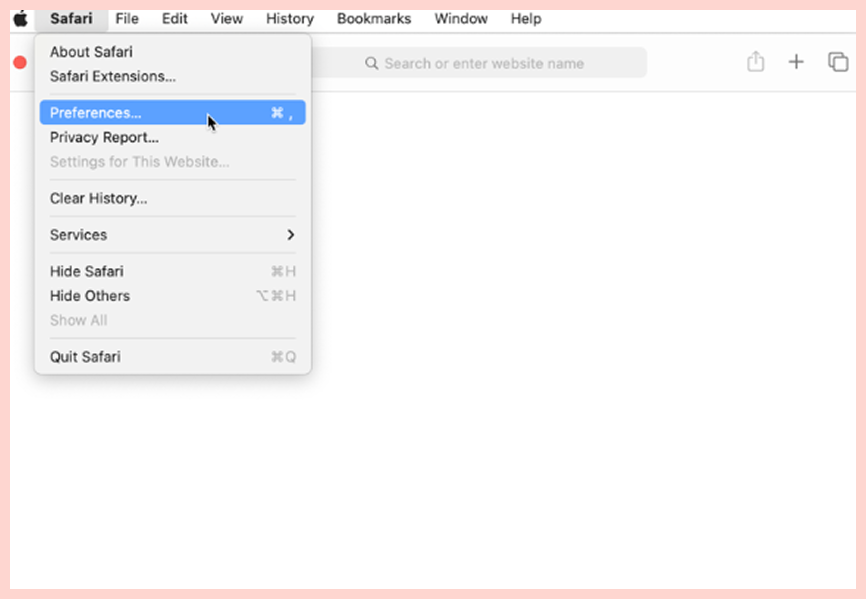
- First off, make sure you get Safari open. Click “Safari” at the top left in the menu bar.
- Then, find the option for “Preferences” in the dropdown.
- Now you will see a bunch of tabs on the top – click on “Privacy.”
- Then, tap on the “Manage Website Data” button.
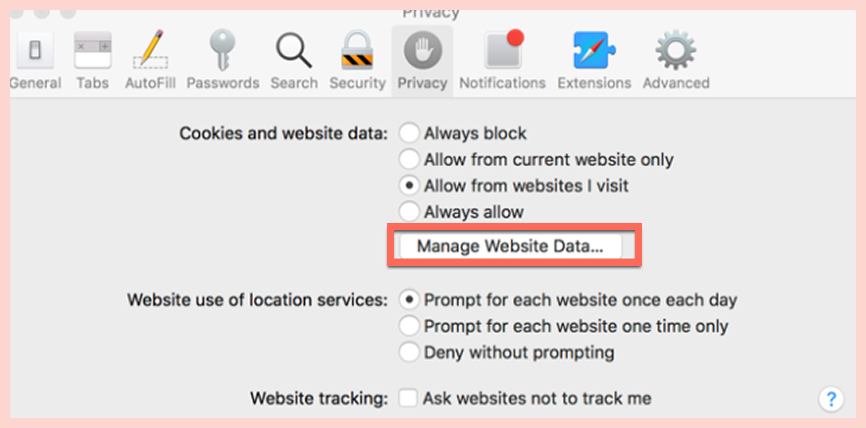
- You’re about to be shown a long list of every record of every site you have visited and cached files that have been taking up your data.
- Do you want to just wipe everything away? Click on “Remove All.” If you are feeling a little more selective? Just select the ones bugging you, tap “Remove,” and you’re golden.
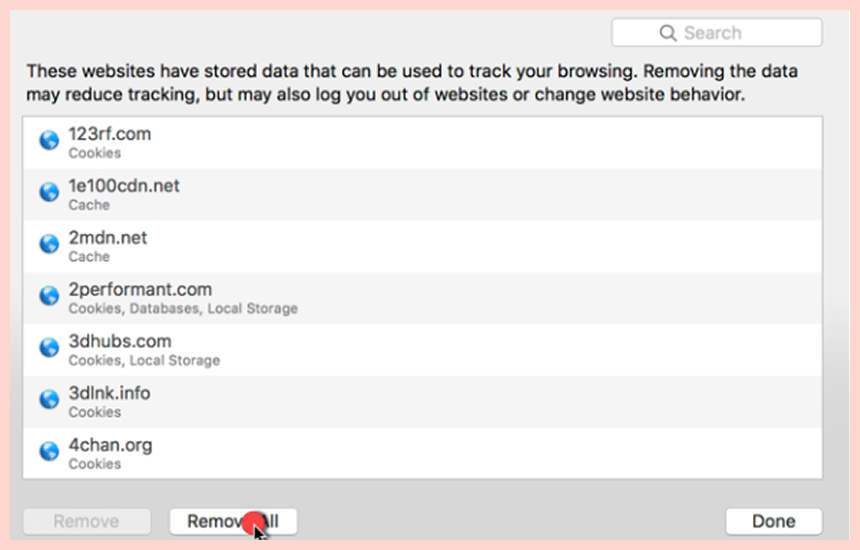
- Don’t forget to confirm by clicking “Remove Now,” or nothing counts.
Honestly, this lets you nuke all your cache at once, or just clear out the sites you’re tired of stalking you. Easy, right?
How to clear browser cache on Mac Safari using keyboard shortcut
Want to nuke Safari’s cache in three seconds flat? Here’s how you hustle through it with nothing but your keyboard:
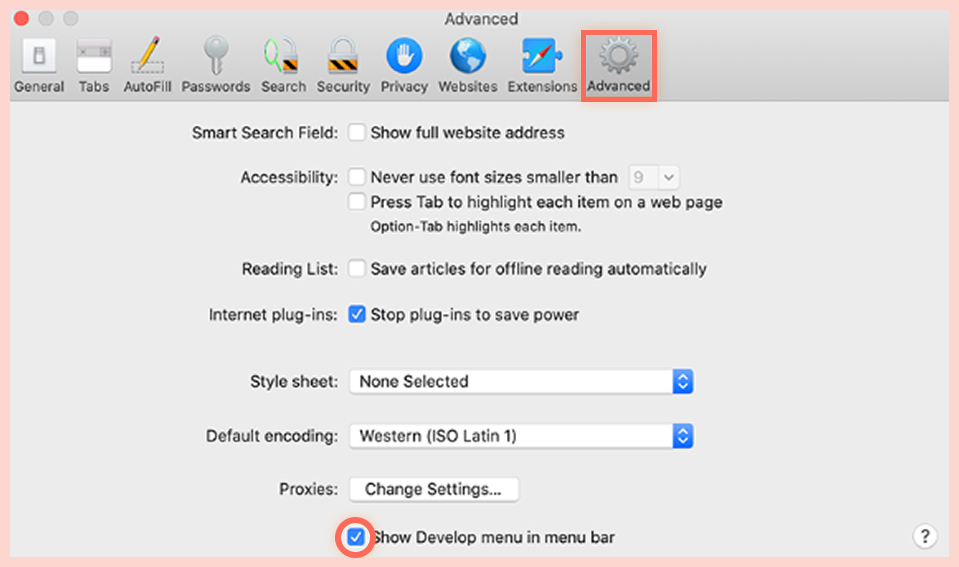
- Okay, before you start mashing keys—Safari hides this behind a secret menu. Head up to Safari > Preferences, then bounce over to the “Advanced” tab.
- See that tiny checkbox for “Show Develop menu in menu bar”? Click it.
- Now you just hit Command + Option + E, and your cache is gone. Straight-up vanished. No fussing around in settings, no clicking through endless menus.
Heads up, though: This little shortcut doesn’t touch your cookies or your history, just the cache. So, it’s great when stuff’s acting weird, and you just want to fix it fast, but don’t expect a full-on browser cleanse.
How to clear Safari cache through the developer menu
Here’s the fast-and-loose way if you’re down to just clicking around some menus:
- First thing, you need to have that Develop menu turned on—go back through steps 1 and 2 earlier if you skipped them.
- Go on over to the menu bar, smash that “Develop” option, and
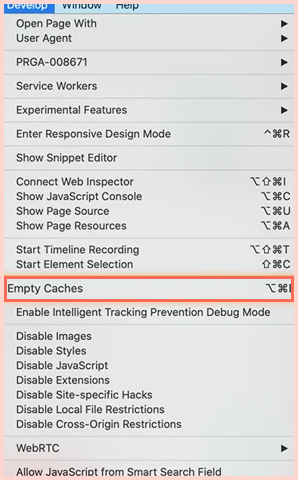
- Scroll down till you spot “Empty Caches.” Click it, and you just wiped the slate clean.
How to clear cache on Mac Chrome
For Chrome users, there are many ways you can actually clear the cache. The browser comes with built-in tools that make it easy and straightforward.
Using Chrome’s built-in clear browsing data feature
- Pop open Chrome, look for those three little dots (⋮) way up on the top right. Click on it and slide down to “Settings.”
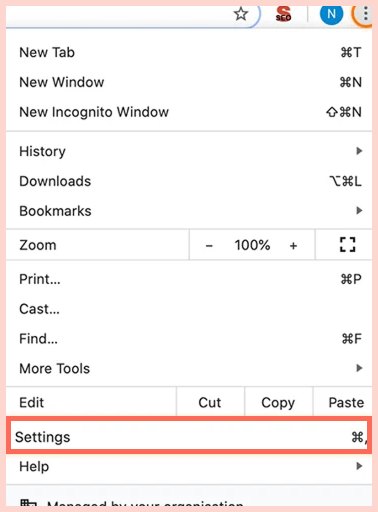
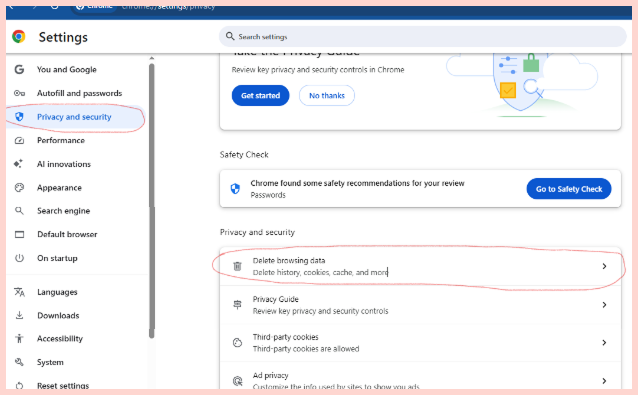
- Select “Privacy and security,” then click “Clear browsing data.”
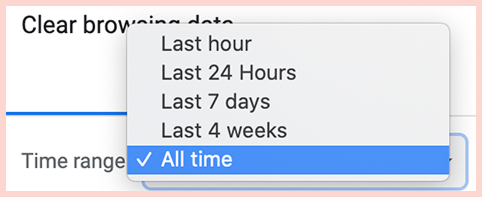
- A window pops up. Now you get to select how much of your digital history you want to torch. Last hour? 24 hours? All the time, if you’re feeling dramatic.
- Make sure you check “Cached images and files”; otherwise, you’ll just be wasting your precious time, and nothing will get removed.
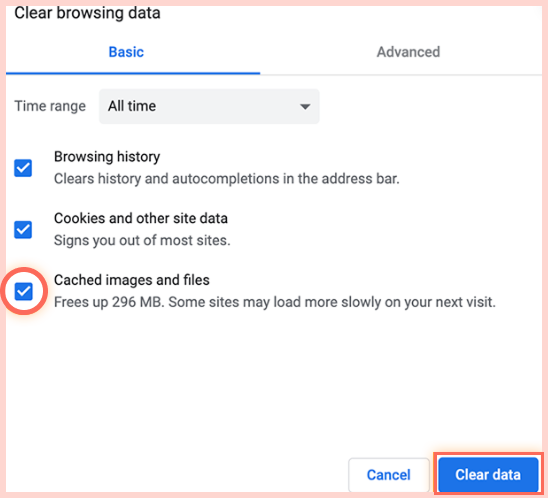
- Click on “Clear data.”
Wait a moment. Chrome will do its thing and, boom, confirms it’s all gone.
Clearing cache on Mac Chrome shortcut
Shortcut method if you’re too cool for clicks:
- Just hit Command + Shift + Delete. Everyone does this. Do it at least twice a week, and you’re good.
- You’ll get the same “Clear browsing data” box.
- Pick your poison (time range), what you want to delete, and hit “Clear data.”
Honestly, this combo works on almost anything (Mac, Linux, Windows), so you don’t have to remember ten different shortcuts for every device. Pretty nice.
Advanced Chrome cache clearing
Want to go full hacker mode on Chrome and just nuke the cache? Here’s my favorite move:
- Open Chrome and then type in chrome://settings/clearBrowserData into the address bar (let’s be real, copy-paste is your friend, don’t flex your typing skills here)
- Click Enter, and you’ve landed right where you need to be: directly to the clear data page.
- Now, tap “Advanced,” and you’ll see a list of weirdly specific data types Chrome’s been hoarding: cached images, download history, even that autofill stuff that guesses your email wrong every time.
- Check off whatever you want to erase. How far back? A week? A day? It’s entirely your choice.
- Then just click the “Clear data” button, and you are all set.
There is no need to worry about passwords or bookmarks being lost, unless you select the boxes that you don’t want to lose.
How to clear cache on Mac Firefox
If you are looking to carry out an advanced clean of Firefox’s cache, you have options. You can either work your way through the menus or speed things up and use a keyboard shortcut.
Let’s get to the good stuff and get rid of Firefox’s cache.
Method 1: Use Firefox’s clear data feature (the annoying clicky way)
- Open Firefox. Up in the upper right corner, see those three little lines (⋮)? Click on that.
- Click on “Settings” from the menu that appears.
- In the left sidebar, find “Privacy & Security” and click on that link.
- Scroll down until you see “Cookies and Site Data” and click on that link.
- You should now see a dialog box. Check “Cached Web Content.”
- If you don’t want to log back into everything, leave “Cookies and Site Data” unchecked.
- Click on the “Clear“ button, and you will see Firefox work for a second before confirming what got deleted.
Method 2: Use a keyboard shortcut for Firefox
Now, if you are busy or just hate to work your mouse as we do, here’s how to do this.
- Press Command + Shift + Delete. (Just do this while in Firefox.)
- You will see the “Clear Recent History” dialog box pop up.

- Select what you’d like to clear, which could be everything, today, last hour, or some other setting.

- If you want even more options, tap on “Details” and ensure “Cache” is checked.
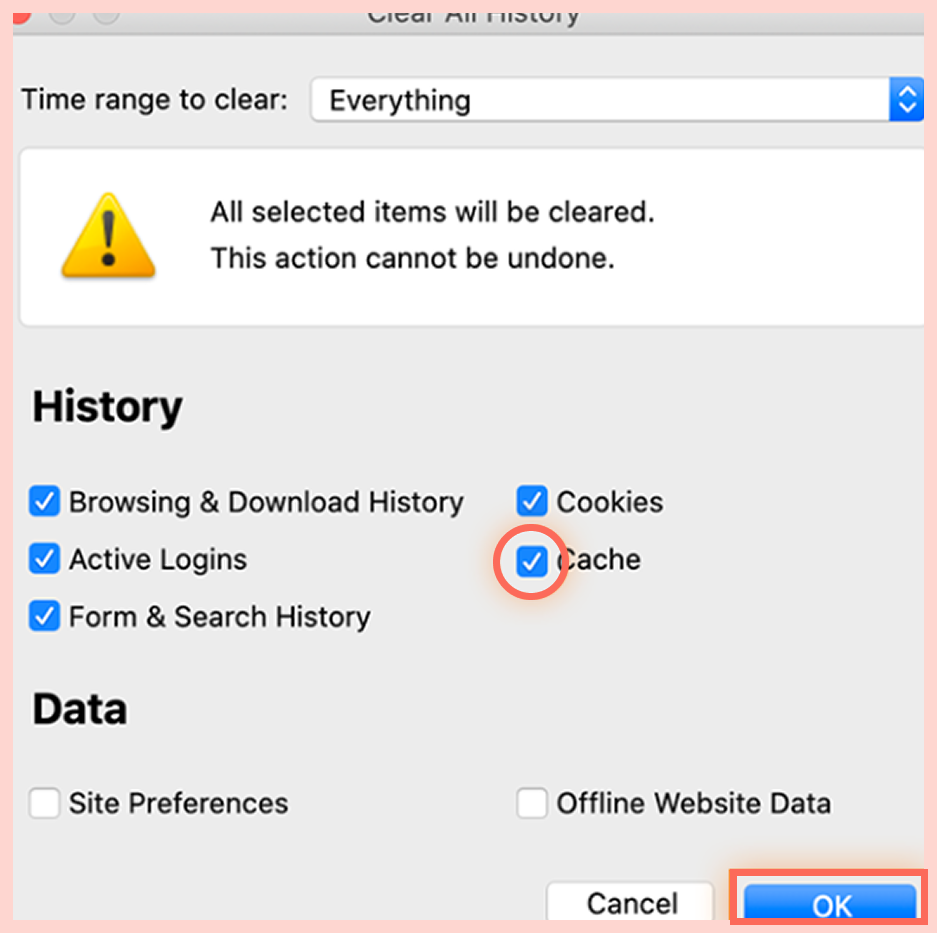
- After that, it’s just “OK” or “Clear Now.”
That’s it. It does not matter if you’re using some old version or a brand new version; the shortcut is the same, so no excuses for a slow browser.
Method 3: Nuke Firefox’s cache via the developer tools
Want to clear that Firefox cache? Try this:
- Click F12 (or Command + Option + I if you’re on a Mac), and there’s Developer Tools.
- Find the settings gear icon, basically in the corner area (it doesn’t need to be super accurate at this point).
- Then scroll and find “Disable Cache (when toolbox is open)” under the “Advanced Settings” area and check it.
- Then, the last touch: right-click on the refresh (reload) button in the address bar, and the add-on option will say something along the lines of “Empty Cache and Hard Reload,” and the cache is gone.
Method 4: Manual cache clearing on Firefox
Every now and then, you just need to go commando and dive into your file system—for example, straight deleting some files. Here’s how:
- First, you need to kill Firefox—then Command + Q—so there are no dormant applications hanging out in the background.
- Open Finder, and then press Command + Shift + G.
- Now, type this magic path: ~/Library/Caches/Firefox/Profiles/ and hit enter.
- You will see folders with random names (the Firefox profiles, folders, AKA alternate personalities of your browser).
- Go into each profile folder to find “cache2.”
- Delete the whole “cache2.”
- Open Firefox again, and it will build the cache folder again, as if it never happened.
- Pro tip? Seriously, write down those exact profile folder names before you go delete everything. Or don’t, if you like to gamble with your settings. You will thank yourself later.
Pro tip: Write down those exact profile folder names before you go delete everything. Or don’t, if you like to gamble with your settings. You will thank yourself later.
How to clear Firefox cache for specific websites
So Firefox lets you remove the cache from just one annoying site instead of needing to clear everything. Here’s how we use the browser:
- Go to that site you really hate.
- Click the little shield (or lock) next to the address bar.
- Locate the “Clear cookies and site data” thing and click on that.
- When the browser asks if you are sure you want to clear the data, hit “Remove.”
- Refresh the page. And you get a fresh start, like nothing ever happened.
Pretty cool, right? All the other sites you were visiting are still cached, so no mass extinction event.
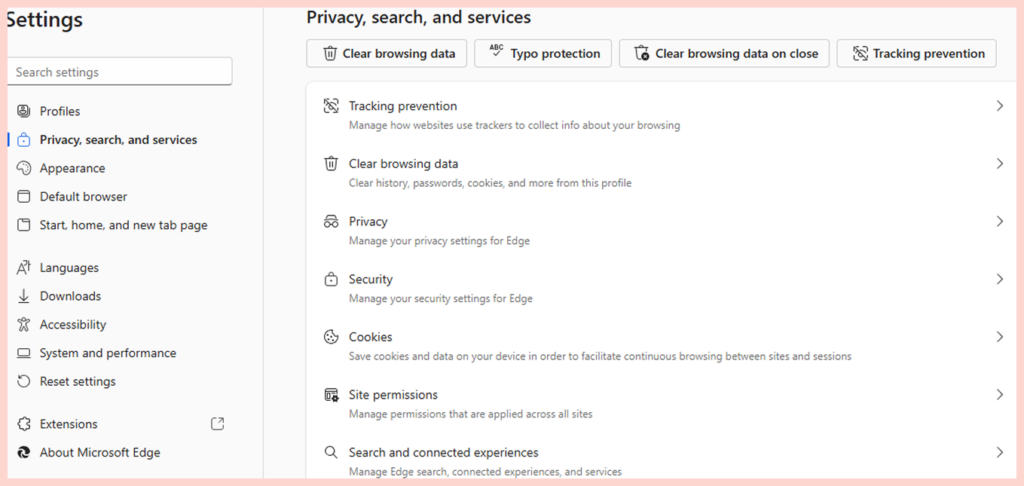
Clearing cache on Microsoft Edge
- Hit those three little dots in the upper-right.
- Then, click Settings.
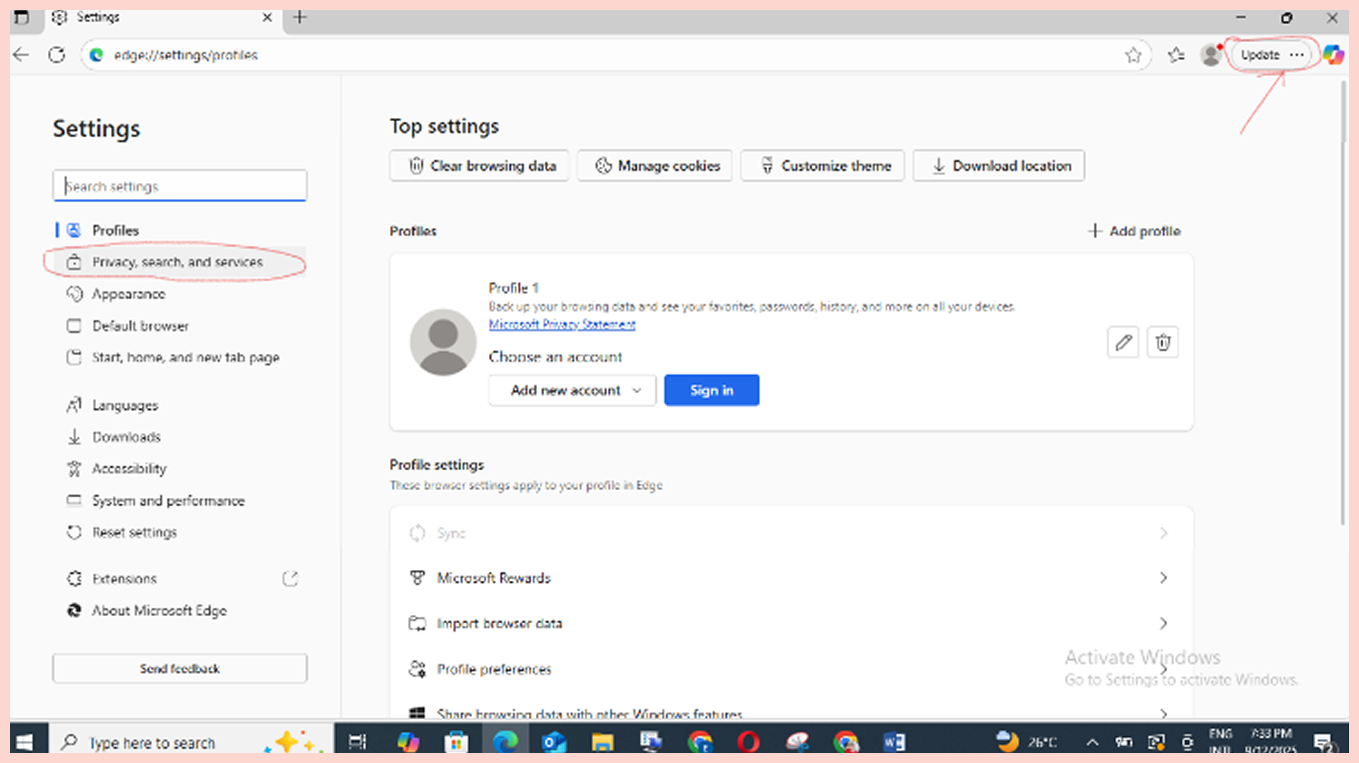
- Look for Privacy, search, and services on the left-hand side and click them.
- Locate “Clear browsing data” and click on “Choose what to clear.”
- Check “Cached images and files,” pick your time vibe.
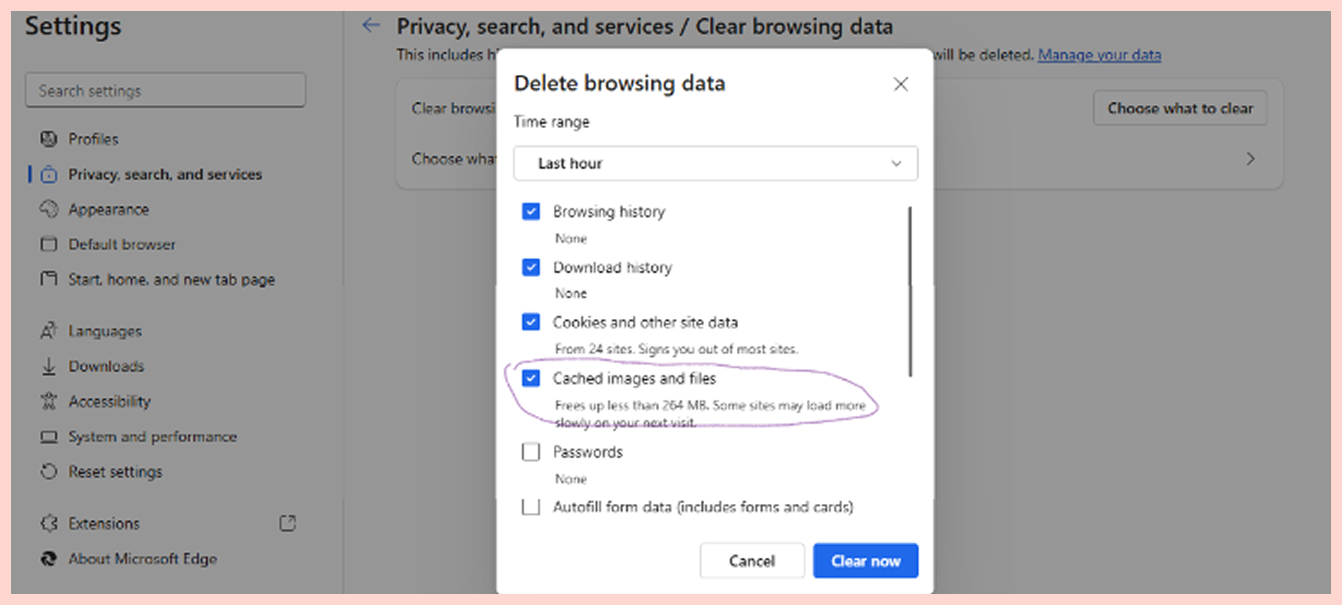
- Hit “Clear now,” and you’re done.
How to clear cache on Mac Opera
- Open Opera and click on the Opera logo (top-left, if you squint).
- Then, click “Settings” or press Command + comma, if you’re living that shortcut life.
- Go “Advanced” >“Privacy & Security.”
- Click “Clear browsing data.”
- Then, tap on “Cached images and files.” Pick whatever time frame fits your drama.
- Tap on “Clear data.”
How to clear system cache on MacBook Air and other Mac models
You want to clear out your Mac’s system cache without messing things up? You can nuke a bunch of those old cache files, but don’t just go wild and trash stuff you’ve never heard of. Do that, and your Mac might start acting weird, or just straight-up not work. Nobody wants that.
1. Clearing user cache files
- Open Finder. Hold down Command + Shift + G.
- A little window will pop up—type this: ~/Library/Caches and hit Enter.
- You’ll have folders, each named after different apps and system processes. (Start simple: look for apps you don’t use anymore or ones you KNOW are hogging space.)
- Select and toss them to the Trash.
- Empty the Trash. That’s it.
Heads up: If a folder’s name basically looks like gibberish to you, leave it alone. You really don’t want to delete something that keeps your system from melting down.
Clearing specific app cache
A lot of apps stash their own piles of junk.
- You can dig through them by going to: ~/Library/Caches/[AppName]
- For example:
- Safari stashes junk in com.apple.Safari
- Chrome’s got com.google.Chrome
- Photoshop – com.adobe.Photoshop.
- Pop open the folder, and just delete what’s sitting inside the folder (not the folder itself, unless you’re feeling really fruity, but don’t do it)
- Restart the affected apps, and hopefully, after doing all that, your apps can breathe a little easier.
Clearing System-level cache (Careful there)
To put this in perspective, this section is strictly for the seasoned Mac nerds.
- Go to: /Library/Caches
- Do some poking around. If there is a cache folder that has just grown to an unreasonable huge size and has likely not been updated in eons, you can move it to your Desktop (don’t delete it yet!)
- Try your Mac out for a few days to see how it’s handling. If nothing explodes or catches fire, THEN and only THEN you can trash those files.
What happens if I delete all cache files on a Mac?
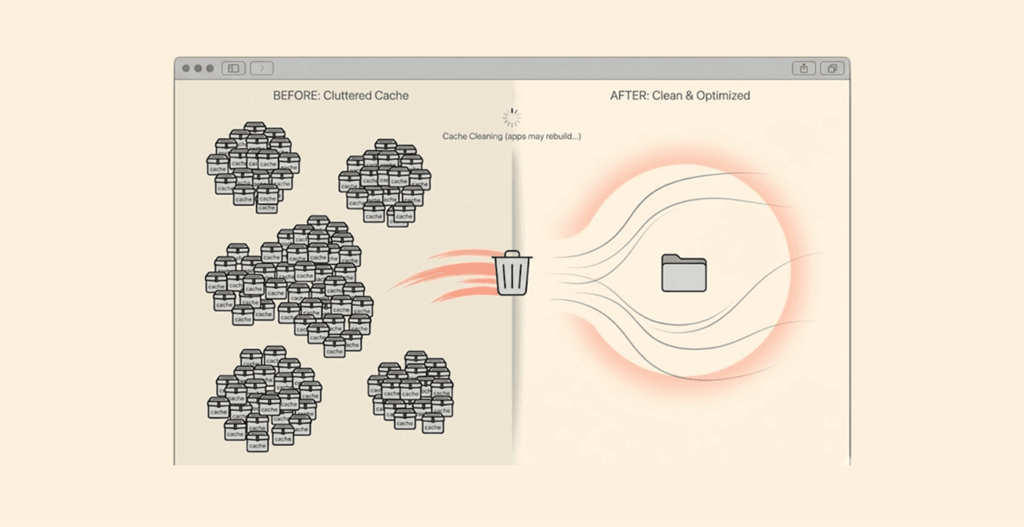
Are you considering resetting your Mac’s cache files? Okay, let’s have an honest discussion. Clicking “delete” on caches is usually no big deal (trust us – your Mac won’t explode), but there are two things you should absolutely anticipate:
- Immediate effect: First, don’t panic if your stuff temporarily runs a little sluggish right afterwards. Apps and websites may not feel particularly responsive as everything has to be loaded from scratch without relying on previously cached content. It’s like your Mac is reconstructing all of its mental notes. So, yes, early on it may get a little lost for a moment. Remember, depending on how many cache files are being deleted, your computer may take some time to build up its cache again, or at least a brief amount of time. This is pretty normal. It will last a few hours, tops. Your computer is just getting its little cache gremlins back to work. After everything is rebuilt, your computer may actually run better than before, without ruining files or all of that junk cached leftover taking up unnecessary space.
- Login trouble: And if you love to stay logged into every single thing until the end of time…well, get ready, because this method will log you out of everything. Your passwords will still remain safe if it has been saved in your browser, but you will have to re-enter them, like it’s 2002.
- Temporary performance lag: Initial lag is normal. It lasts usually a few hours or so, max. Your Mac is simply putting all its little cache gremlins back to work. After it’s done rebuilding everything, your entire computer will run faster, better, and smoother than it ever did previously. No more corrupted junk or bulky and bloated space-wasting remnants.
- Impact specific to applications: However, keep in mind that certain applications store some settings in their cache as well, and while a complete deletion will reset your preferences, it will not erase your actual files or saved data, meaning you aren’t going to lose your thesis project, right?
Best to remember: Just don’t delete everything if you are not confident in doing so. Feel free about going all in on your browser cache; that is harmless; go ahead and “rage click” that clear button.
Maybe have a more careful approach with the application caches, and don’t touch the caches for the operating system unless you know what you’re doing. So: don’t get reckless, be strategic.
Should I clear the cache on Mac regularly?
Yes, but the frequency depends on how you use your Mac.
- Clearing your browser cache monthly: Once a month is probably a good frequency for most people, but if you are out here creating browser history as if it is an Olympic event, you might consider bumping that up to once a week. If you barely use your Mac to browse the internet, throw this frequency every couple of months and call it a day.
- For app caches: This is a mixed bag. If an app is acting peculiar or feeling a bit bloated (I am looking at you, photo editor apps and needy video players), a cache clear might give it a little wake-up slap. In general, apps that have a constant stream of upgrades or are acting glitchy will likely benefit from a cache clear more than your everyday, boring apps.
- System cache: I would not even touch it. macOS does a pretty good job at housekeeping here. Only clear your system cache when you have truly exhausted all your ideas, and your Mac is melting down completely.
When should you clear the cache? You notice slow-loading websites, webpages displaying out-of-date content, apps crashing or hanging, storage being used for no apparent reason, and a website won’t let you sign in? Those are events that clearing the cache will help!
For the record, clearing the cache won’t fix everything. If your Mac is slowing down, it might simply be old or starving for RAM, and even if you clear the cache until your fingers cramp, it will still be slow. Sometimes you just have to give in and address the hardware.
FAQs
There really is no need to do this too often. Just give your browser cache a wipe once a month if you want to keep things running fast. For app cache? Smash that clear button when things misbehave, or you need to free up space. System cache? Do not touch it unless you are troubleshooting.
No, relax. Only the junk files and temporary files (script, image, website data) will be deleted. Your beloved bookmarks and passwords are secure—unless you intentionally delete them.
Cache is not a magical speed button. If your Mac is still slow, it probably just needs more RAM, it has a million junk files, or it is clawing along on a hard drive that should’ve been replaced long ago. Try the basics- restart, close some apps, maybe delete a few files. If that does not work… well, it is time to upgrade.
Absolutely. Just use something like CleanMyMac, CCleaner, or Onyx. They’ll wipe that cache for you; there’s no reason to worry about doing it with your own two hands. There are tons of these kinds of programs on the internet. Just be sure to check you’re not downloading anything sketchy, that’s all.
Cache is bits left over from websites—like images, scripts, and all that. It’ll help your next visit load more quickly. Cookies are trickier: they remember logins, preferences, and sometimes too much. Clearing the cache won’t log you out; clearing cookies? There’s a good chance you’ll be entering that password again.
User-level caches (the one in your home folder) are generally completely fine to clear. System Library caches? That’s where angels fear to tread. If you think you can handle it, at least drag whatever you don’t want to the desktop first—not straight to the trash. You know, live dangerously.
Nope! If you simply wipe the Cached images and files, you haven’t removed your logins. But, once you check that box that says Cookies and other site data?… Yup! You’re going to be logged out of most sites, at least. So unless you want to log back into everything, you may want to avoid doing that!
Because your browser needs to download everything again from scratch instead of accessing the cached version. This will only happen the first time you access a site; after the page is cached again, your pages will be fast again. Not broken, just rebuilding!
Yes! This is common – crusty old cache and cookies get in the way of logins. Wipe them both out, refresh the page, and most of the time you’re back in business (but yeah, you’ll probably need to log in again, so hope you actually remember your password).
Not a bad idea, but you don’t have to. Major updates usually clean things up behind the scenes anyway. Clearing out browser or app caches before a big update might help dodge weird bugs, but don’t lose sleep over it.
Just hang in there for a couple of days. If suddenly your websites are zooming, those weird app crashes chill out, and you’ve magically got more storage space, then yeah, mission accomplished. Sometimes you’ll need to wait for things to rebuild before the magic happens. Patience.